AI Call Center

19 May '26

Get a dedicated phone number and an AI voice agent that answers inbound calls, places orders for registered customers, and transfers anything it cannot handle to a human on your team. Every call is logged with its caller, duration, status, cost, and any linked sales order. Head to Settings → Integrations & Add-ons → AI Call Center to enable it, then set the support phone number you want unhandled callers to reach.

Stock-Only Units

12 May '26

Mark a product unit as "Not for sale" to keep it in your stock counts and unit conversions without offering it on any sales channel. Pick the mode when you add a new unit, or edit a unit's prices to switch it later. Useful for case packs, sample sizes, or anything you receive and store but do not sell directly.

Sales Order PDF Export

30 Apr '26

Export any sales order as a PDF directly from the order detail page. Click the export button at the top right and choose PDF to download a ready-to-share copy with your customer's details, line items, and totals.

Purchase Order PDF Export

30 Apr '26

Export any purchase order as a PDF directly from the PO detail page. Click the export button at the top right and choose PDF to download a ready-to-share copy with your supplier's details, products, costs, and item notes.

Sales & Purchase Order Attachments

30 Apr '26

Keep supporting documents alongside the order they belong to. Open the new Attachments tab on any sales order or purchase order detail page to upload PDFs and images, such as proof of delivery, signed paperwork, supplier quotes, or product photos. Crop images, download originals, and remove files when they are no longer needed.

Sales Order AI Import

23 Apr '26

Upload a screenshot, PDF, or spreadsheet to create sales orders automatically. AI extracts the customer, line items, quantities, and prices, and works for a single order or many at once. Quickly review and adjust the imported data before creating the draft order.

Purchase Order AI Import

23 Apr '26

Upload a supplier quote, invoice, or order form, and AI extracts the supplier, products, quantities, and costs automatically. Review and adjust the imported data before placing the order.

Bulk Stock Import on Location Detail

23 Apr '26

From a location's detail page, import stock adjustments in bulk by uploading a count sheet or document (CSV or Excel). AI matches products, quantities, and any storage location information to your existing catalogue, so you can reconcile stock for the whole location without entering rows one by one.

Measured Unit Pricing

23 Apr '26

Switch any product to measured-unit pricing to bill by the actual weight, volume, length, or surface area shipped, including per kg, per litre, per metre, or per square metre. The price on the invoice then reflects exactly what was packed, which is ideal for catch-weight items where each piece varies.

Purchase Order Item Notes

23 Apr '26

Attach a note to any line on a purchase order to capture pack sizes, supplier instructions, internal reminders, or anything else. The note stays on the line and is included in the purchase order email sent to your supplier and to you, so both sides keep the same record.

Purchase Orders

3 Apr '26

Manage the entire purchase order lifecycle in one place. Create POs by selecting a supplier and warehouse, add products sourced from that supplier or any custom items, then track them from Draft through Ordered to Received and Completed. Once placed, send an order summary directly to your supplier's email. Record deliveries by creating Goods Receipt Notes (GRNs), and link supplier invoices to generate Purchase Invoices to be paid to your suppliers. Reorder with one click to quickly repeat past purchases.

Suppliers

3 Apr '26

Keep all your supplier information in one place. Link products to the suppliers that source them so they appear automatically when creating purchase orders. Track balances, manage contacts and addresses, and see purchase order history at a glance. Allocate payments to supplier invoices manually or use auto-allocation to match them in one click.

Supplier Payments

3 Apr '26
Supplier Payments

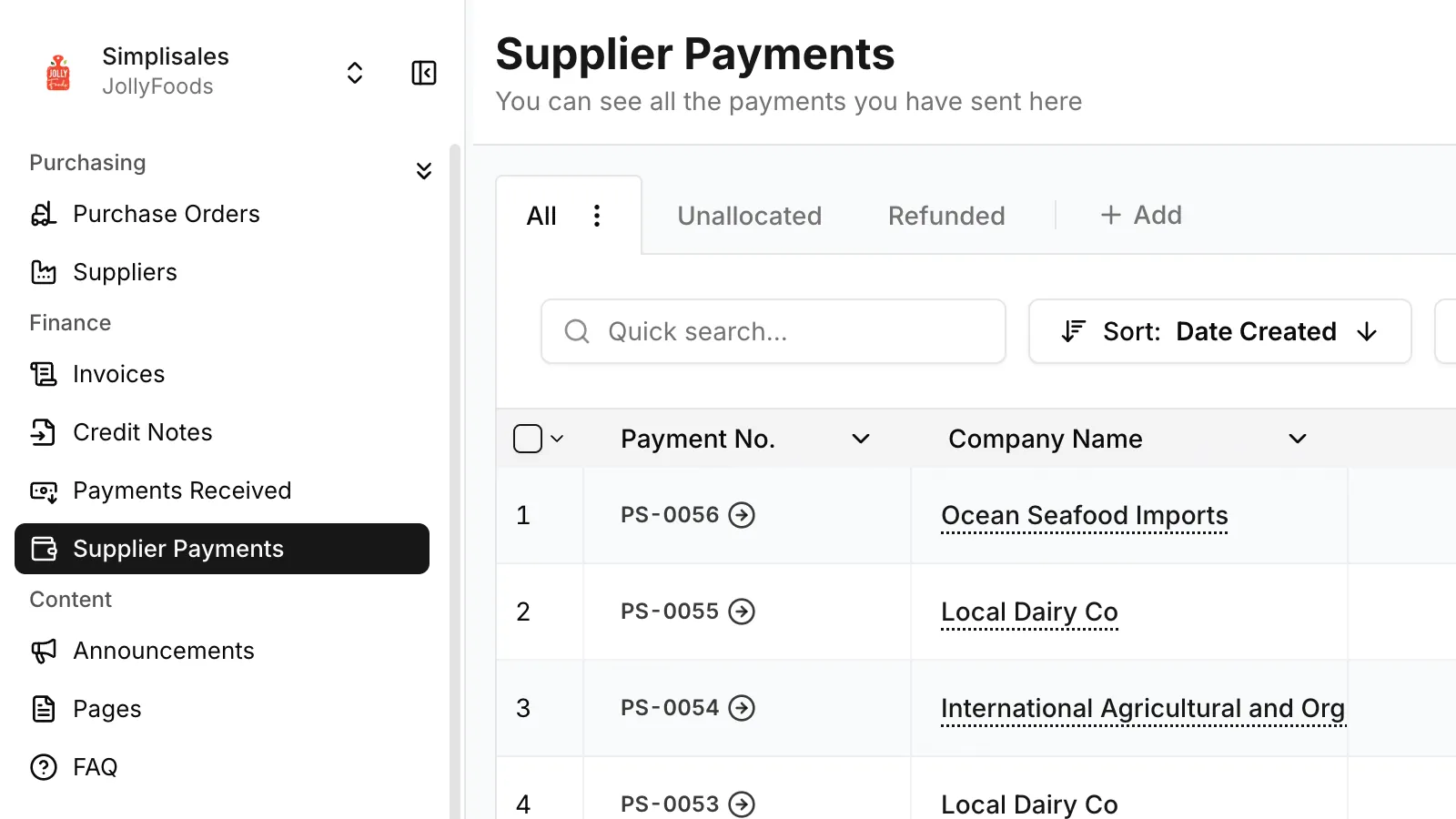
Record payments sent to your suppliers and allocate them against outstanding invoices. View reconciliation status at a glance and reallocate payments when needed, keeping your supplier balances accurate and up to date.

Table Shift Select

3 Apr '26

Select multiple rows faster with Shift+Click. Click a row checkbox, then hold Shift and click another row to select everything in between. Works across all listing tables.

Sidebar Quick Access

3 Apr '26

Pin frequently-used pages to a Quick Access section at the top of the sidebar. Click the pin icon on any menu item to add it, click the pin icon again to remove it. Your pins are saved across sessions so your favourite pages are always one click away.

Compare Analytics

4 Mar '26

You can now directly compare your Products, Brands, Companies, Categories, Price Lists, and Catalogues. Head to any listing page, filter and select multiple items, then compare their analytics side-by-side, up to a maximum of 10 items.

FAQ

17 Feb '26

Add, update, or remove frequently asked questions that will be visible in the FAQ section on your eCommerce app and website. Head to the FAQ page under Content to manage your questions and answers.

Announcements

17 Feb '26

Add and update announcements to be shown instantly to your customers, sales reps, or both on your eCommerce app and website. Set specific timelines to show announcements for depending on your use case. Head to the Announcements page under Content to get started.

Pages

17 Feb '26

Add, update, or remove the default Privacy Policy and Terms of Service pages, or create custom pages for your eCommerce app and website. Set the visibility status to show pages to customers only, sales reps only, team members only, everyone, or keep them as draft. Import content from your gallery and use template variables like company.name or company.phoneNumber to reference your company information. Head to the Pages link under Content to get started.

Gallery

17 Feb '26

View and manage all your media assets in the dedicated Gallery page. Upload files individually, in bulk, or as entire folders, and organise them into folders with drag-and-drop. Select multiple items easily, then move, rename, or delete them in one go. Deleted assets go to the Trash where you can restore or permanently remove them. Head to the Gallery page under Content to get started.

Collapsible Sidebar

17 Feb '26

The sidebar is now collapsible, making it easier to navigate the dashboard. Click the collapse button to collapse the sidebar into menu categories. Clicking a menu category will reveal the items within it, giving you more room for the content you are working on.

WhatsApp Self-Onboarding

17 Feb '26
WhatsApp Self-Onboarding

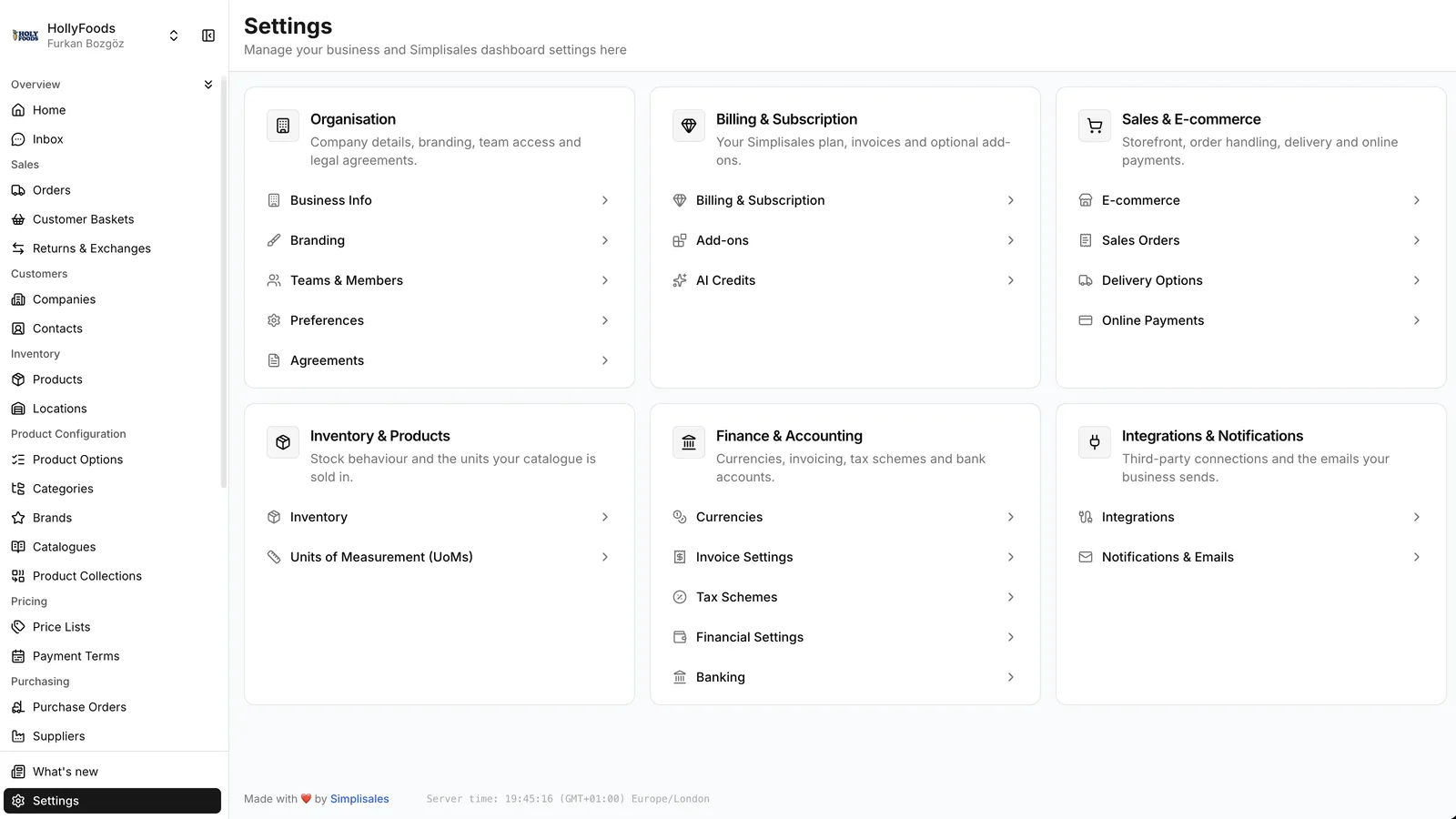
You can now connect your WhatsApp Business account yourself, without contacting support. Navigate to Settings → Integrations, click WhatsApp Business, and follow the guided setup flow. Sign in with your Meta Business account to authorise access — your WhatsApp Business Account and phone number are linked automatically.

WhatsApp Integration Settings

17 Feb '26

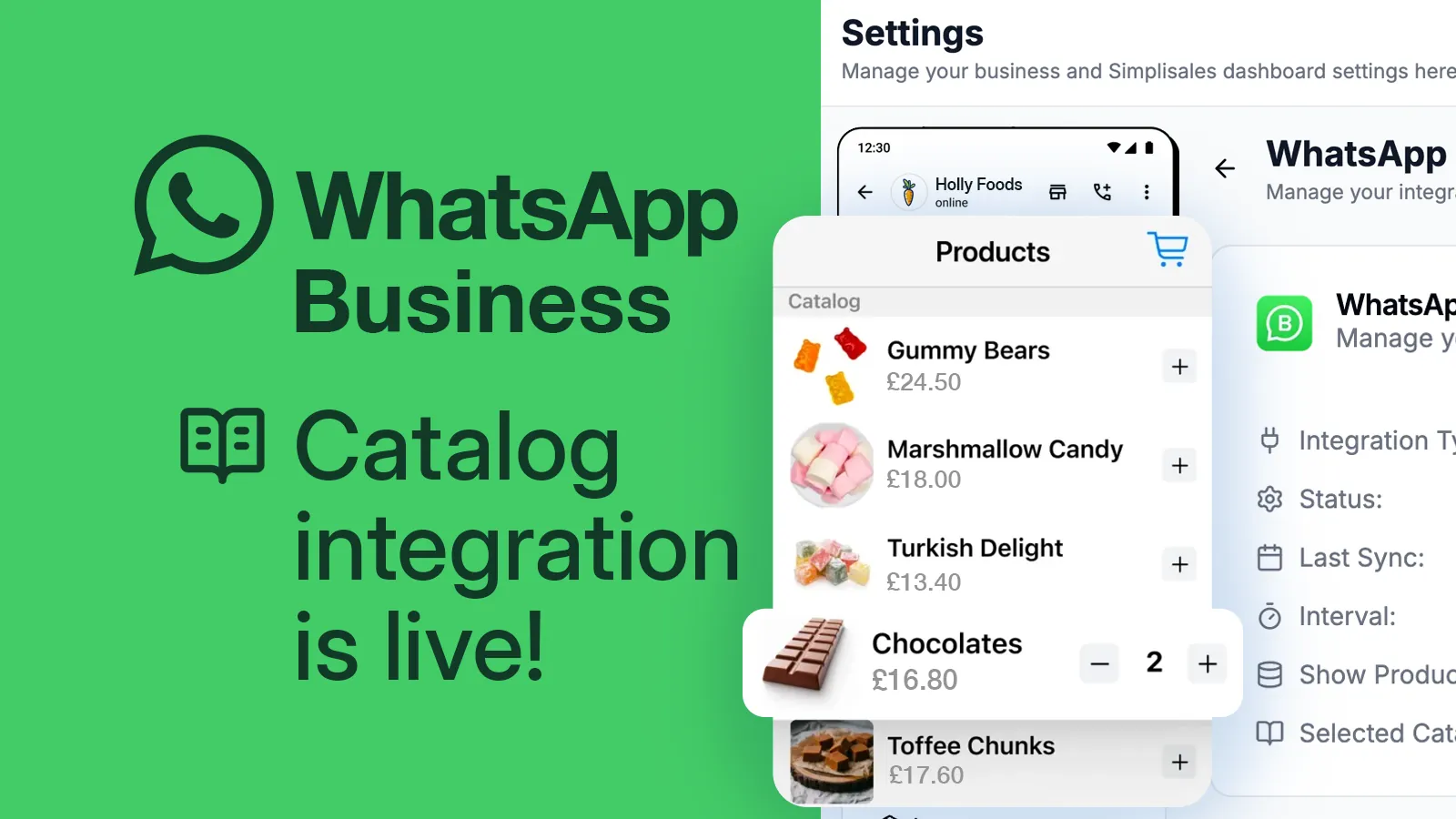
See your WhatsApp integration status and settings at a glance. Easily update your WhatsApp business profile, display name, and profile photo. Change which catalogue is displayed and whether to show product prices. Head to Settings → Integrations → WhatsApp to manage everything in one place.

Analyse Everything

23 Jan '26

Analytics is here. Every Company, Product, Catalogue, Category, Brand, Price List, and Team Member now has a dedicated Analytics tab. Compare up to four entities side by side, filter by any time frame, and track key metrics like Net Sales, Units Sold, Gross Profit, Gross Margin, and more. Whether you want to see which brand is outperforming the rest or how a sales rep is doing this month, the data is right where you need it.

WhatsApp Inbox

23 Jan '26

You can now receive and view WhatsApp messages from your customers without leaving the Dashboard. Head to the Inbox page to see all incoming messages, provided your WhatsApp integration is active.

Product History on Company Details

23 Jan '26

The Company detail page now includes a Product History tab showing the last ordered date, quantity, and price for each product. You can select products directly from this tab and create a new order in just a few clicks.

Apply Discounts During Payment

23 Jan '26
Apply Discounts During Payment

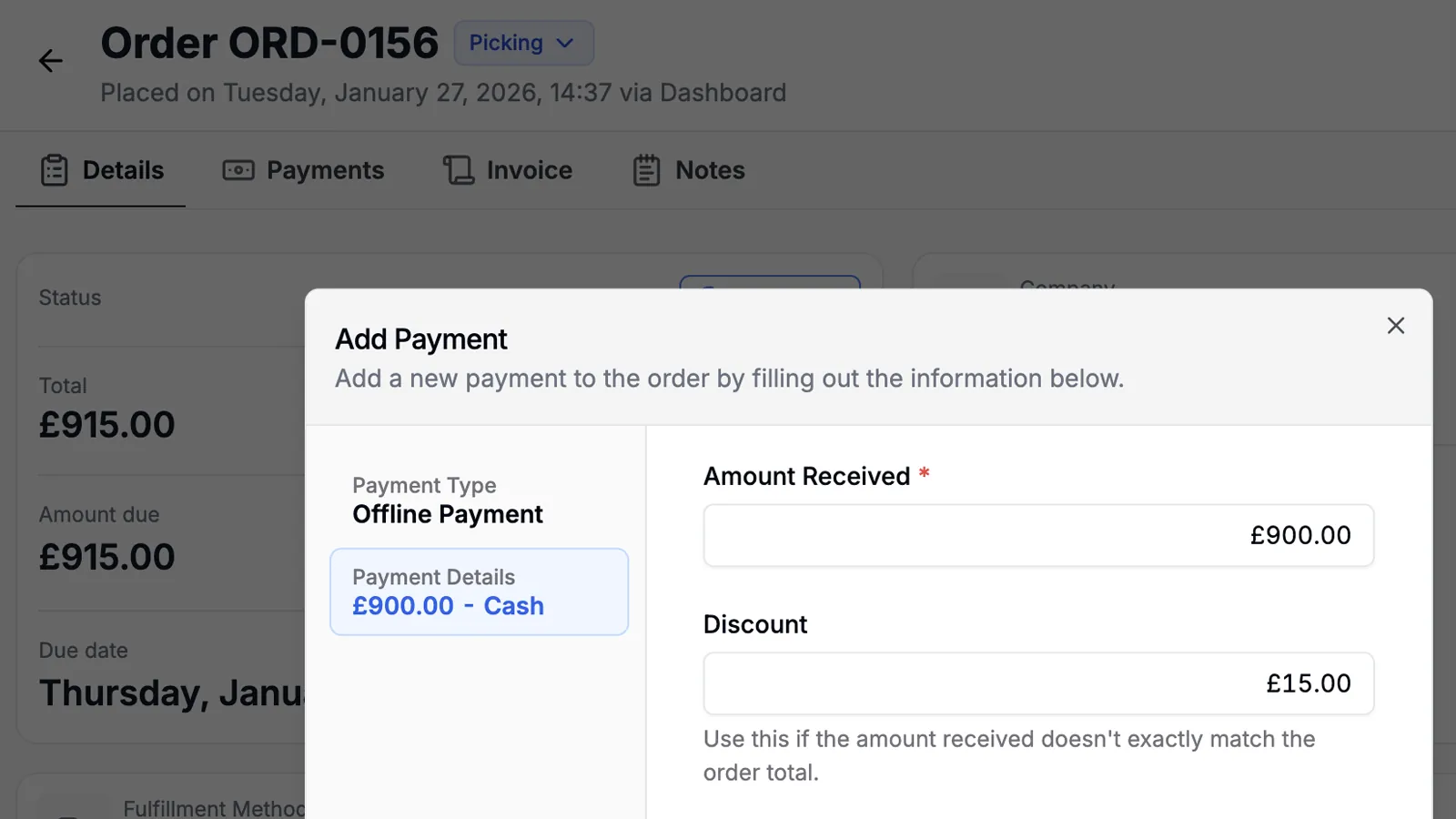
You can now apply a discount when adding a payment to an order. For example, if an order total is £621.40 and your customer pays £620, you can apply a £1.40 discount to reconcile the difference easily.

Private Table Views

23 Jan '26

You can now save a table view for your own use instead of sharing it with everyone on your team. When creating a new table view, simply choose to keep it private.

Remove Allocations Individually

23 Jan '26
Remove Allocations Individually

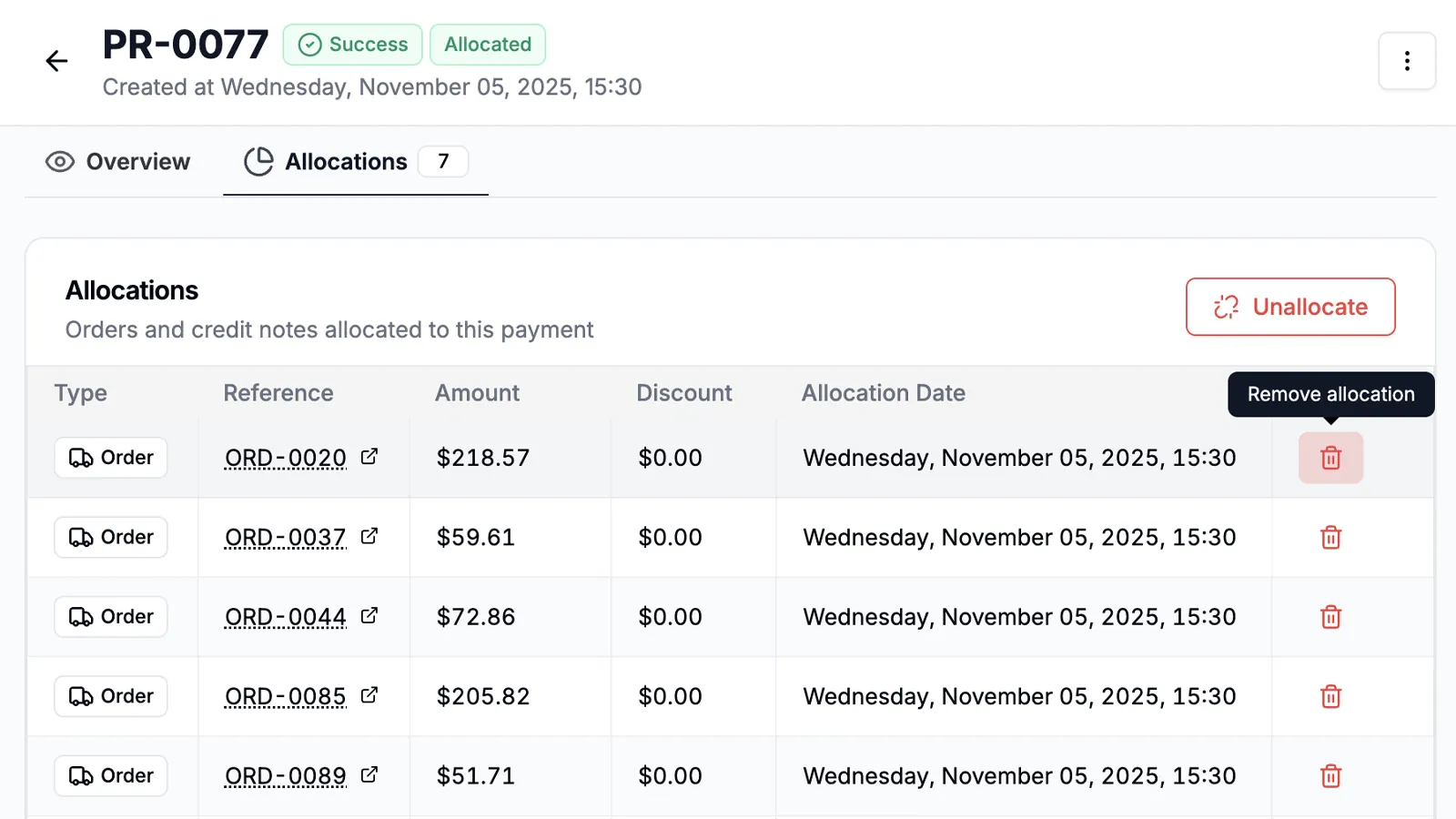
You can now remove individual allocations directly from the detail page of a received payment. This gives you more precise control over payment reconciliation without affecting other allocations. You can also unallocate all allocations from a payment at once.

Notify Customers on Order Confirmation

23 Jan '26

You now have the option to notify customers via email after confirming an order. Head to the order detail page and confirm an order to see the new notification option.

Edit Payment Due Date

23 Jan '26

You can now edit the payment due date on the order detail page. Head to any order and update the due date without needing to navigate elsewhere.

Unblock Customer Emails

23 Jan '26

Sometimes customers complain that they never received an email from your business. Email services may sometimes block emails. To prevent such cases you can now check if their email is actually blocked and unblock it from the Contact detail page.

WhatsApp Catalogue Integration

25 Dec '25
WhatsApp Catalogue Integration

Feature your product catalogue in WhatsApp. Select which catalogue to display and whether to show prices. Requires a Facebook Business ID, a WhatsApp Business account, and a connected phone number.

Integrations Page Redesign

25 Dec '25
Integrations Page Redesign

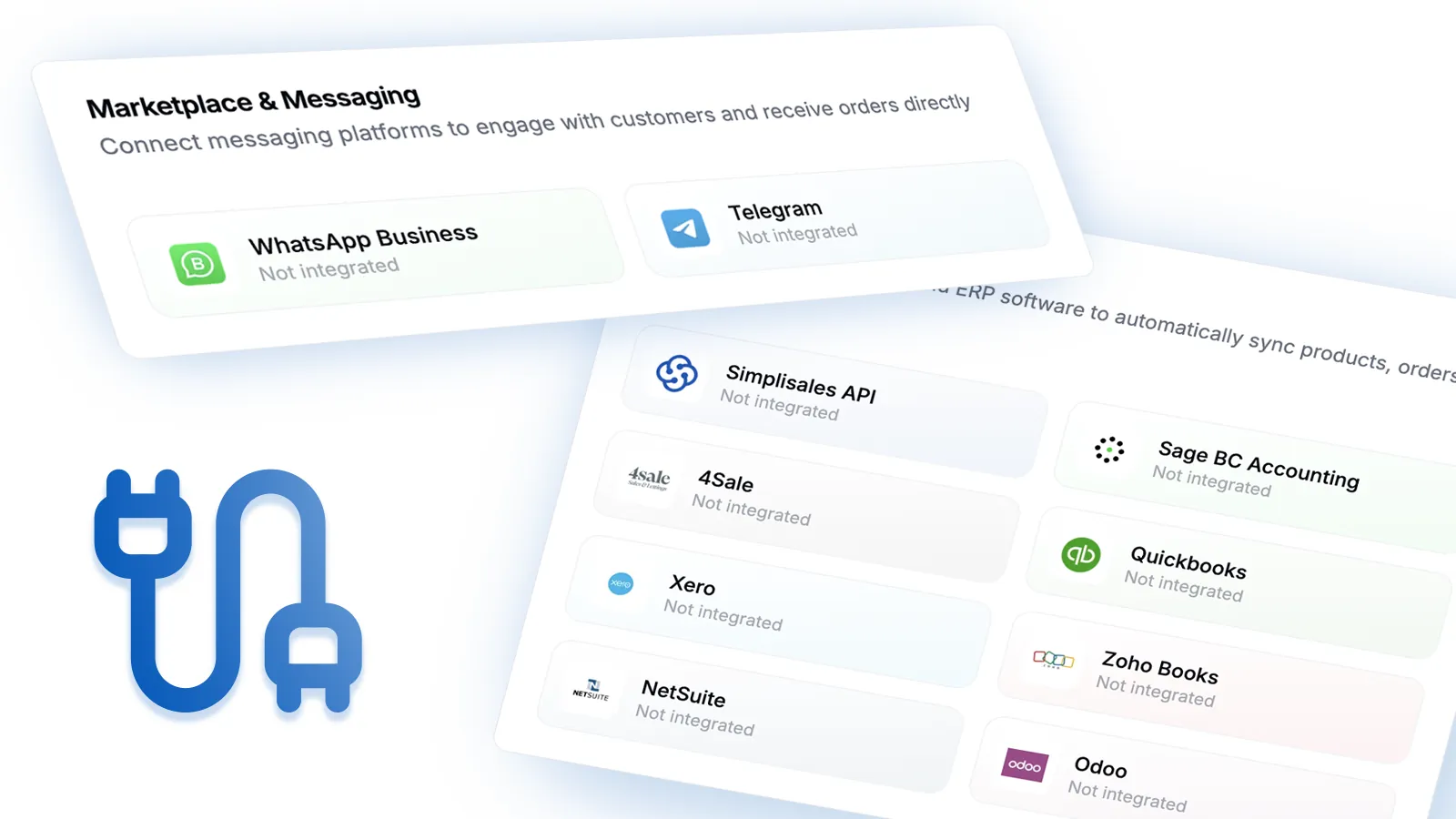
View all your integrations in one place along with their status and configuration.

Negatives in Order Details

25 Dec '25

Add negative quantities to issue refunds or adjustments. Products with negative values are displayed as Credit/Debit in the order timeline. Negative values are excluded from shipment measurements and do not affect the product’s inventory.

Merge Order Flow

25 Dec '25

Combine two orders into a single order, or create a new order from them. In Order Details, click "Merge Order" and select the target order.

Split Order Flow

25 Dec '25

Divide an order into multiple orders. Click "Split Order" and choose to create a new order or add items to an existing one. Then select the items and quantities to split.

Profitability in Order Details

25 Dec '25

Toggle the "Profitability" button above the Items table to see profit and margin for each item. Costs are based on what you entered during "Stock In". Gross profitability for the entire order is always visible in the summary section.

Select Assignee for Order from Basket

25 Dec '25
Select Assignee for Order from Basket

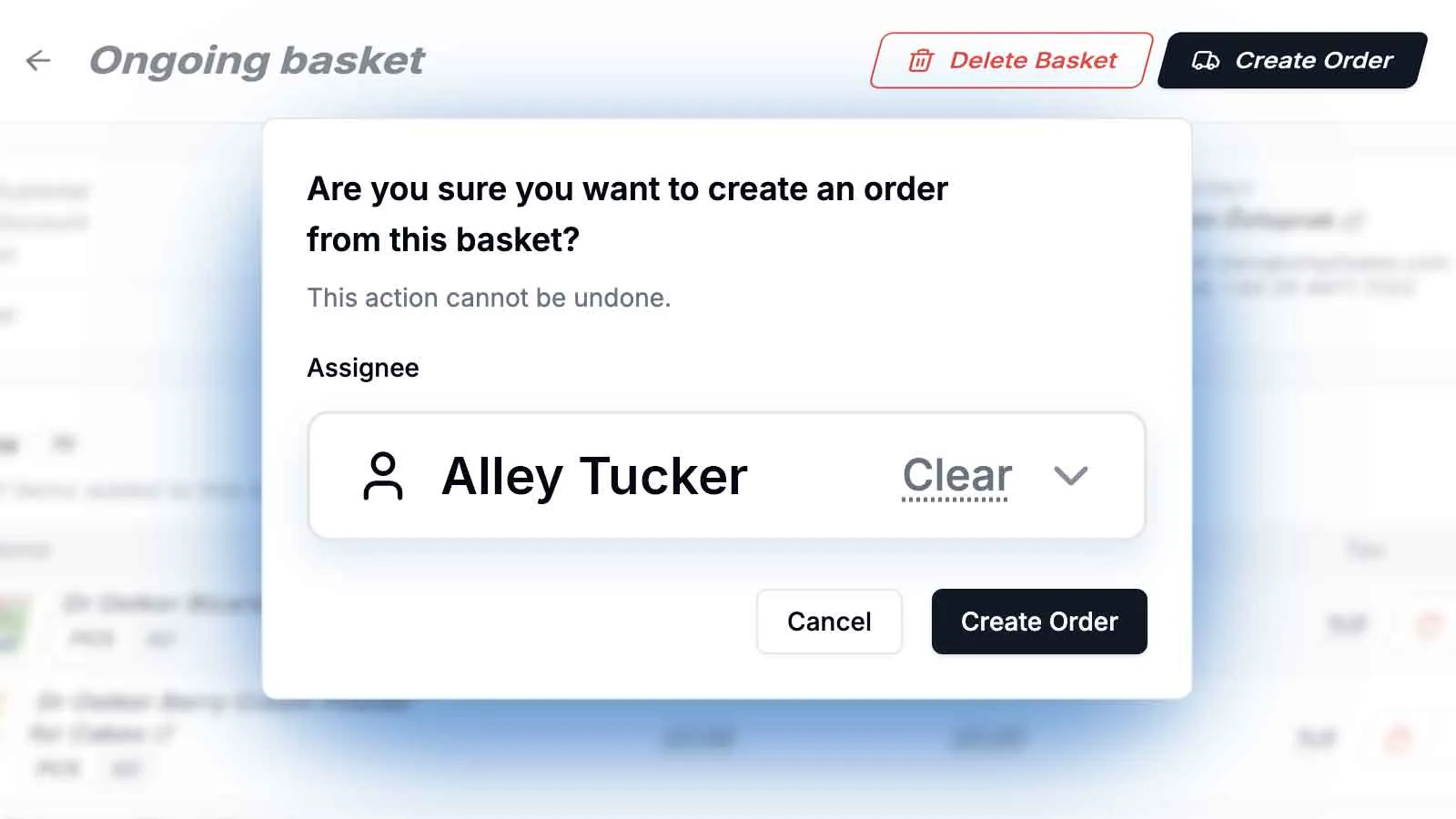
When creating an order from a basket, you can now assign it directly to a dashboard user. In the Basket Details page, click "Create Order" and select the assignee.

Add Multiple Payments

25 Dec '25

You can now add multiple payments at once. In the Payments Received page, click "Add Payment" and select "Bulk Payments".

Payment Details Redesigned

25 Dec '25

The payment details page has a refined design. Both the Overview and Allocations tabs now display information in a cleaner, more readable format.

Export Company Transactions

27 Nov '25
Export Company Transactions

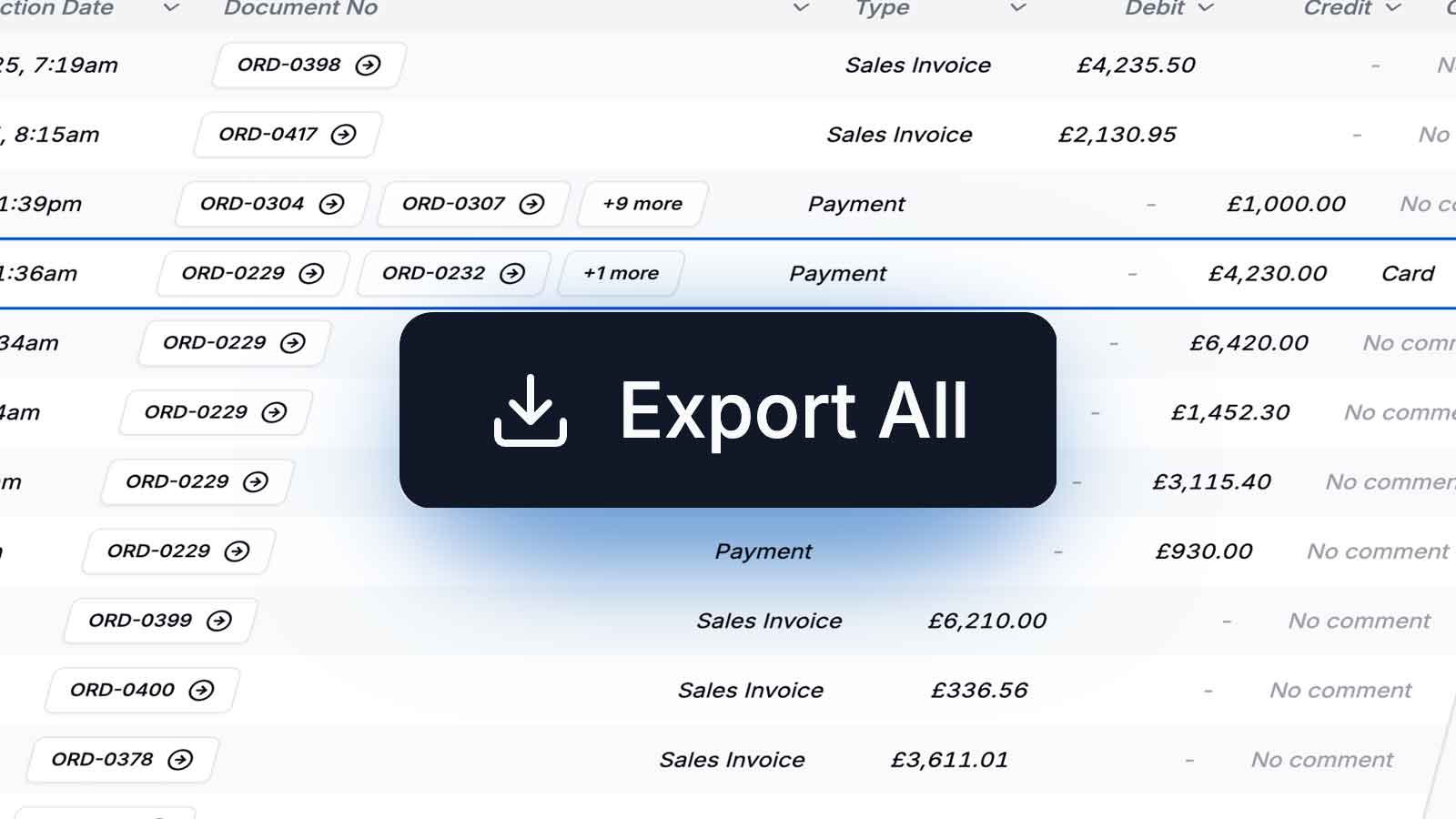
Keep track of all transaction activity for any company. Head to the Company detail page, click the "Activities" tab, and use the export button to download a complete log of transactions.

Order Detail Export

15 Nov '25

You can now export a single order to CSV and Excel formats. Simply go to the order detail page, and click the export button at the top right of the page.

Redesigned Contact Detail Page

15 Nov '25

We keep improving the contact management workflow. The detail page has been redesigned and a new "Emails" tab has been added. You can now view the emails your contacts received and whether they clicked on any links in the emails. This is useful for tracking email engagement and understanding your contacts' behavior.

Track Contact Emails

15 Nov '25

Easily view all the emails sent to a contact, track their open and click-through status, and even resend them if needed. You can find this new tab as "Emails" in the contact detail page.

Track Contact Devices

15 Nov '25

A new "Devices" tab has been added to the contact detail page for our users who are on the Enterprise plan. You can now view the devices your contacts have used to login to your account. This is useful for tracking device activity and understanding your contacts' behavior.

Teams & Members Redesign

15 Nov '25
Teams & Members Redesign

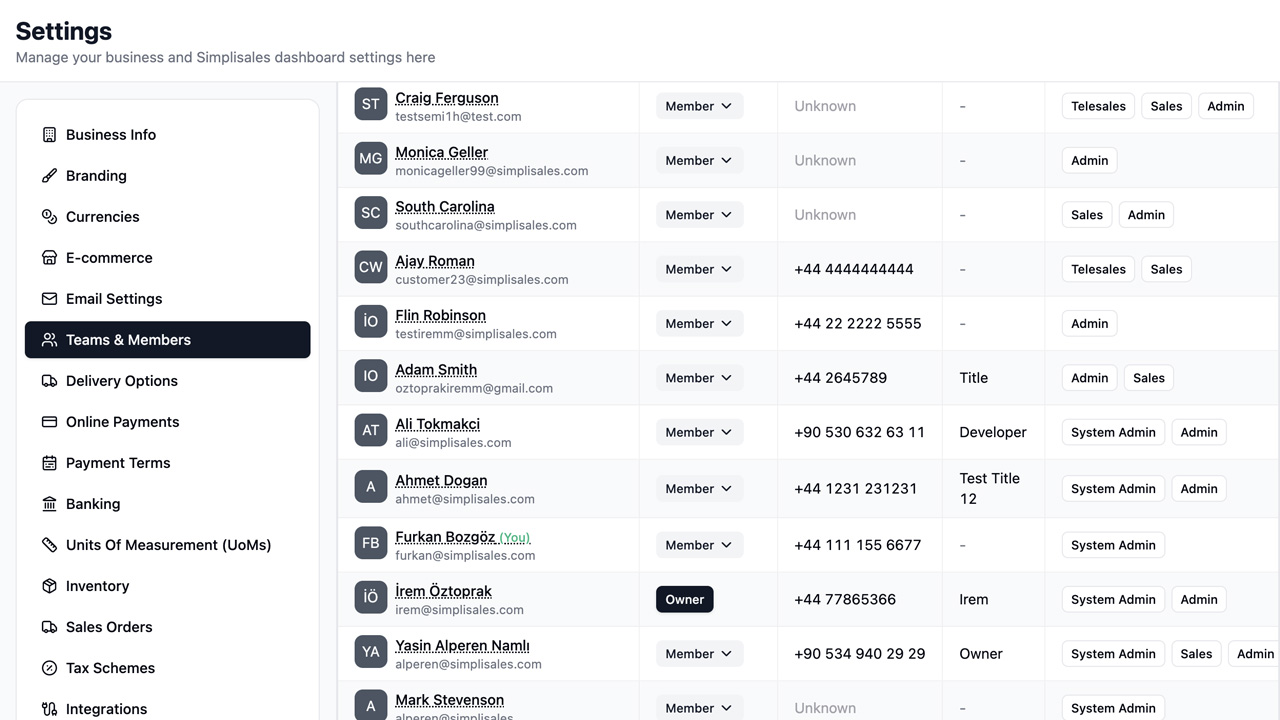
The Teams & Members page got a complete redesign for improved control over team members and their permissions. You can now easily see each member's permissions and their assigned teams.

Group Order Items

10 Nov '25
Group Order Items

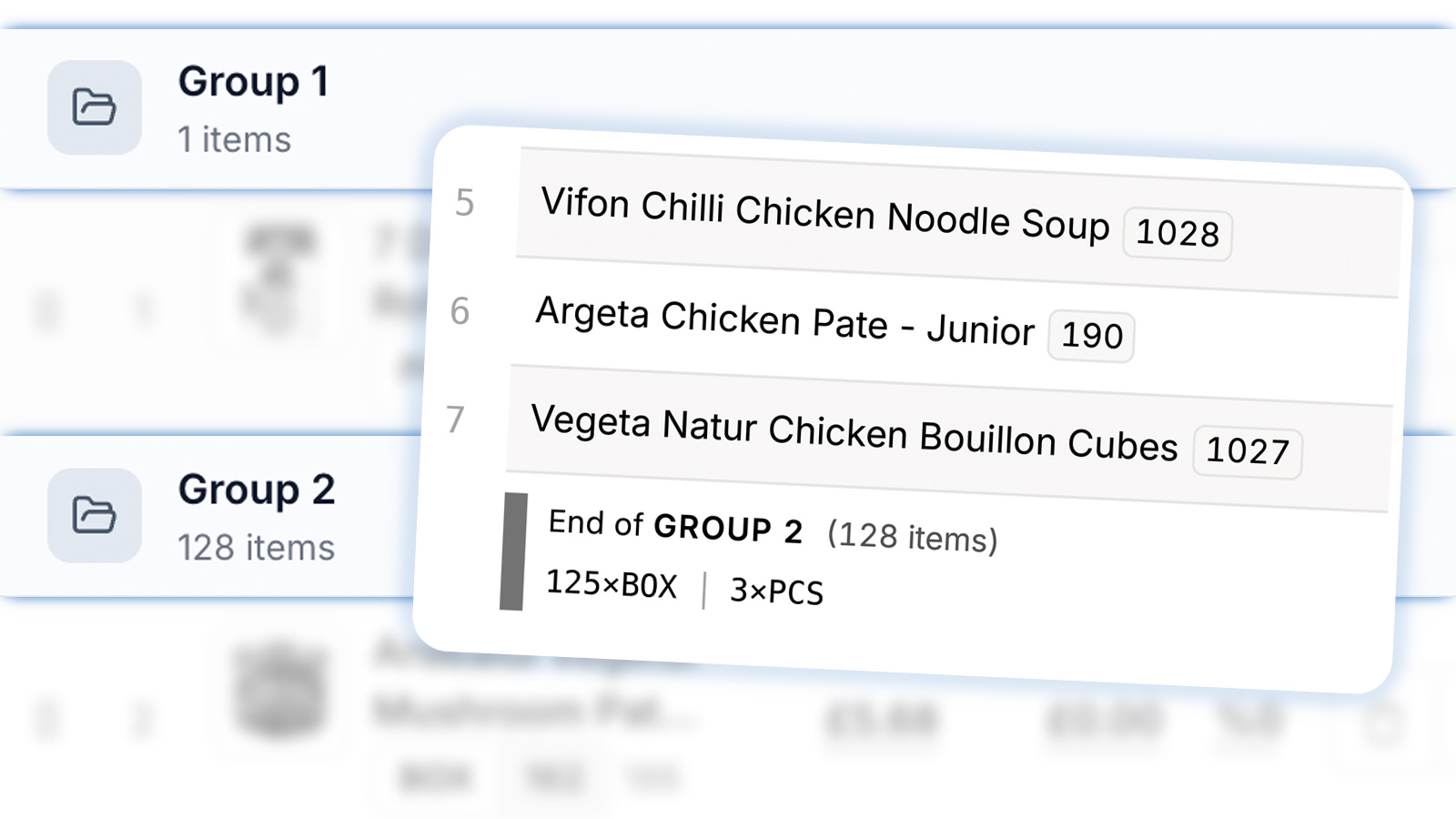
The ability to group order items is crucial for easier order management, especially when a lot of items are being scanned from different carts. You can now create a new group by clicking the "New Group" button on the order detail page to create a new group. Either click on the group row itself or tap the "Add Items" button and select the group you want to add the items to. The grouped items will also be displayed separately in the picking list, and the invoice with a summary of the quantities per unit. Make sure to enable this feature in the Sales Orders section of the settings page.

Sales Orders Settings

10 Nov '25
Sales Orders Settings

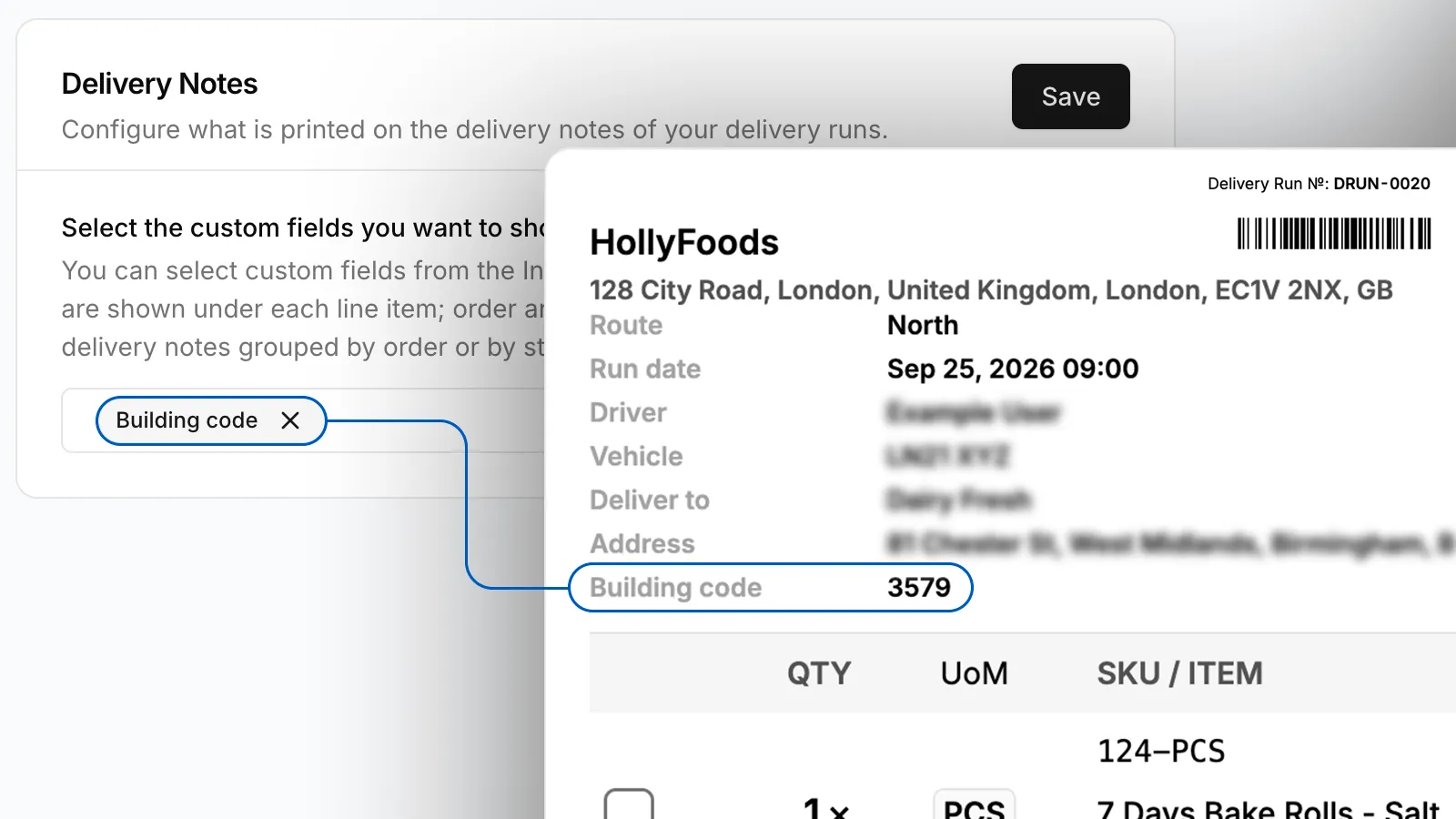
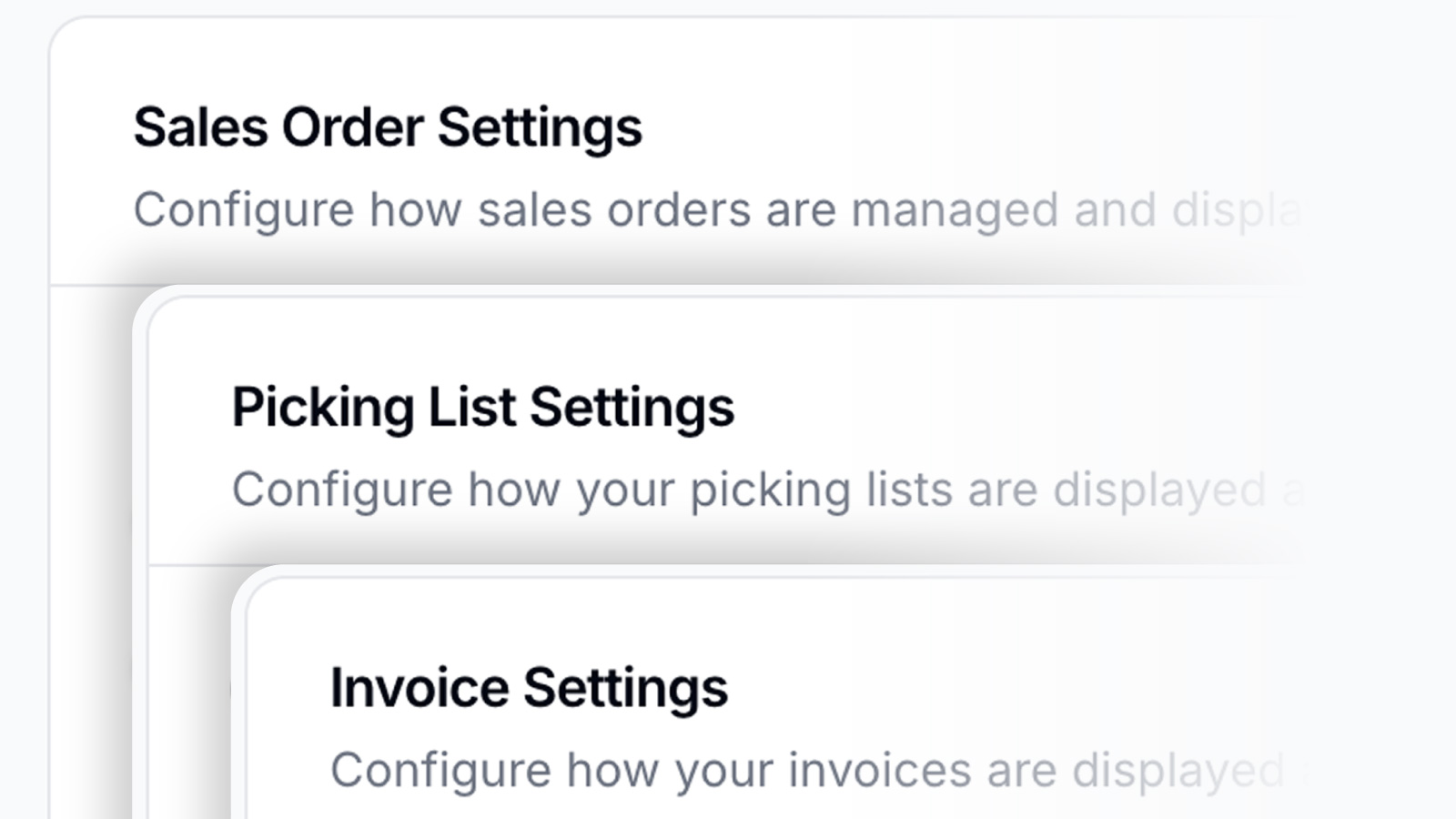
Now there is a single page to set everything related to sales orders. Group items, set fulfilment behaviour, change product sorting, hide or display custom fields on invoices, customise the picking list, and whatever else you can think of about your sales order workflow is listed under Sales Orders section of the settings page.

Arrange Product Collections

10 Nov '25
Arrange Product Collections

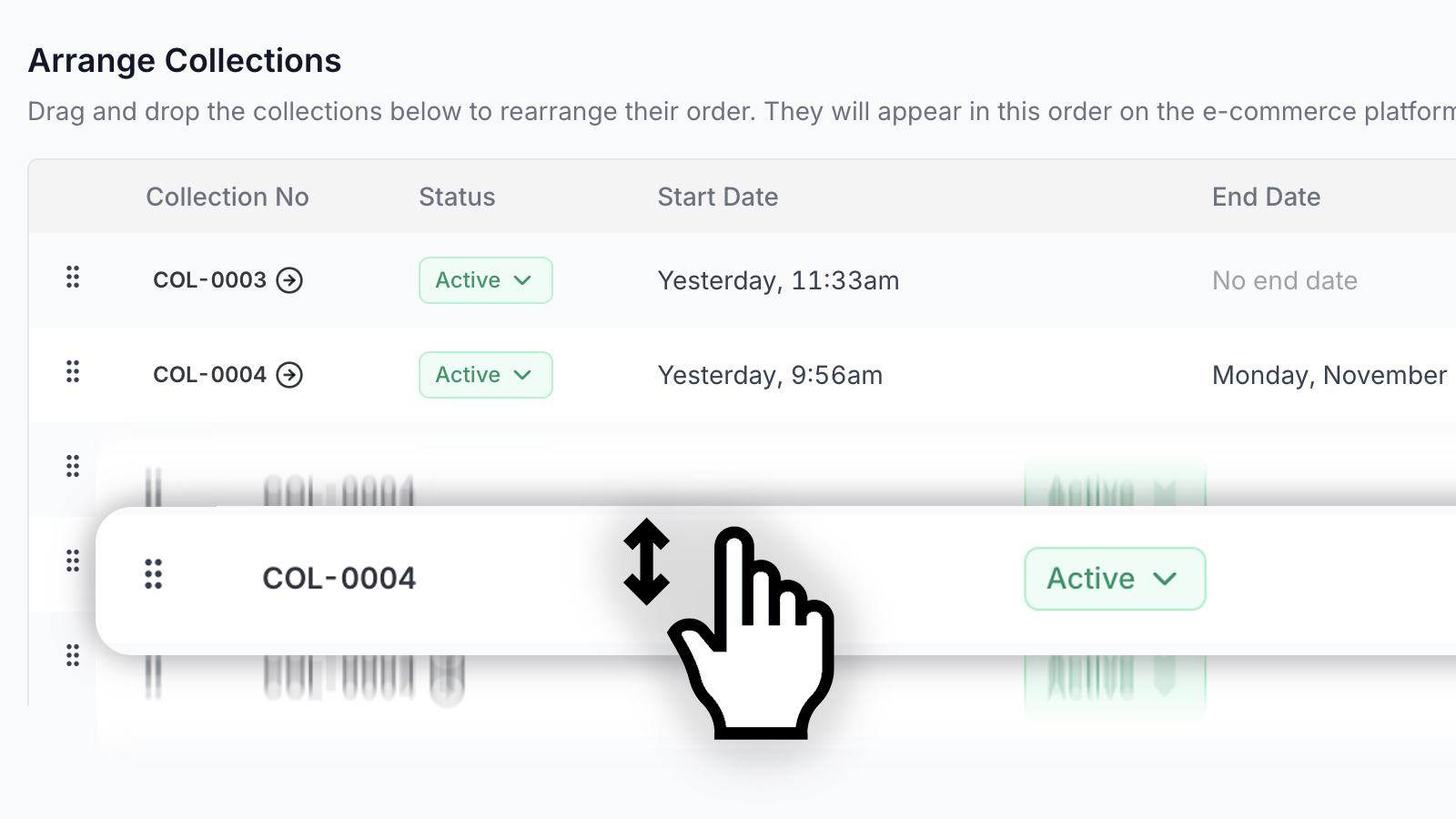
Collections are a great way to showcase related products together. The previous implementation did not allow you to rearrange the collections. You can now simply drag and drop the collections conveniently to make sure your customers see them in the order you want. Simply click the "Arrange Collections" button on the Collections listing page, make your changes and hit the "Save" button to apply your changes instantly.

Manually Reconcile Unallocated Payments

4 Nov '25

Manually allocate payments and credit notes to unpaid invoices for more precise reconciliation. Head to the details page of the Company you want to reconcile payments for and click the "Manual Allocation" button to start the flow. You can select payments and credit notes from the left and allocate them to unpaid invoices on the right.

Nested Storage Locations

4 Nov '25
Nested Storage Locations

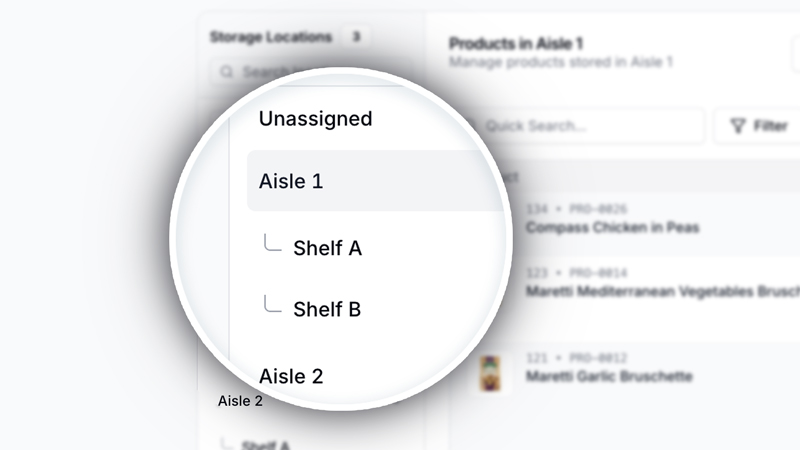
Now you can manually allocate payments and credit notes to unpaid invoices for more precise reconciliation. Head to the details page of the Company you want to reconcile payments for and click the "Manual Allocation" button to start the flow. You can select payments and credit notes from the left and allocate them to unpaid invoices on the right.

Gross Weight and Volume in Order Detail

4 Nov '25
Gross Weight and Volume in Order Detail

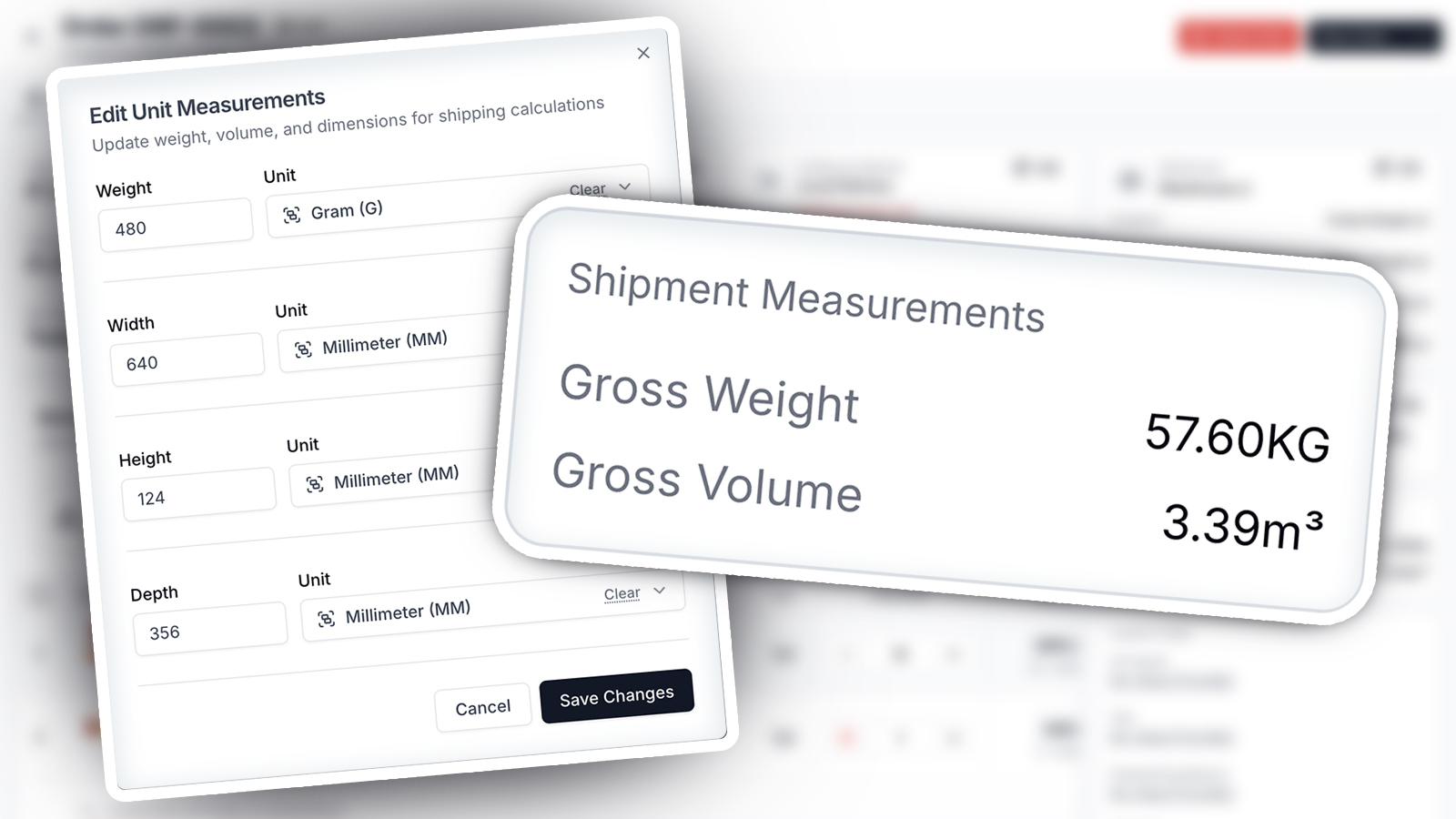
Quickly see the total weight and volume of your orders in the order detail page so you can ship your orders more efficiently. Please make sure to add the measurements to the units of your products from the product detail page to see this feature. Additionally, you can also see the gross weight and volume printed on your picking lists.

Redesigned Brand Details Page

4 Nov '25

Brand details page received a complete facelift with the new design and layout. Easily add more information to your brands and showcase them to your customers.

Redesigned Category Details Page

4 Nov '25
Redesigned Category Details Page

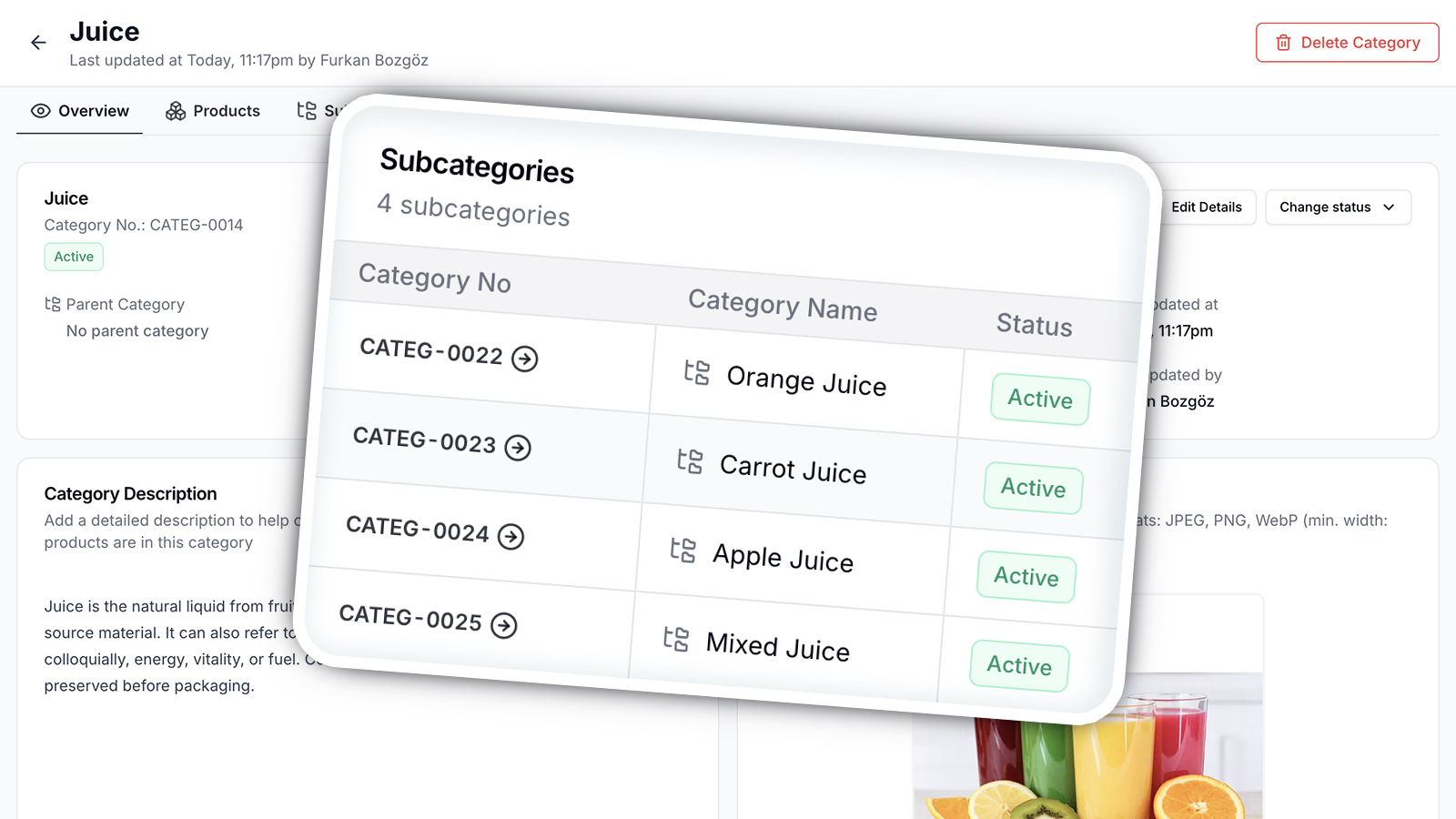
Besides the usual facelift, the highlight of the redesign is the subcategories feature. Now you can expand your category tree with nested categories and showcase your products to your customers in a more targeted way. Simply "Juices" doesn't cut it, specify which juice exactly so that your customers can find anything they want easily. To try it out, head to the details page of the category you want to edit and click the "Subcategories" tab.

Redesigned Company Details

29 Oct '25

As with many other pages, the Company Details page received a complete facelift with a new design and layout. Now you can make sense of all the information at a glance and navigate through tabs easily.

Invoice The Way You Want

29 Oct '25

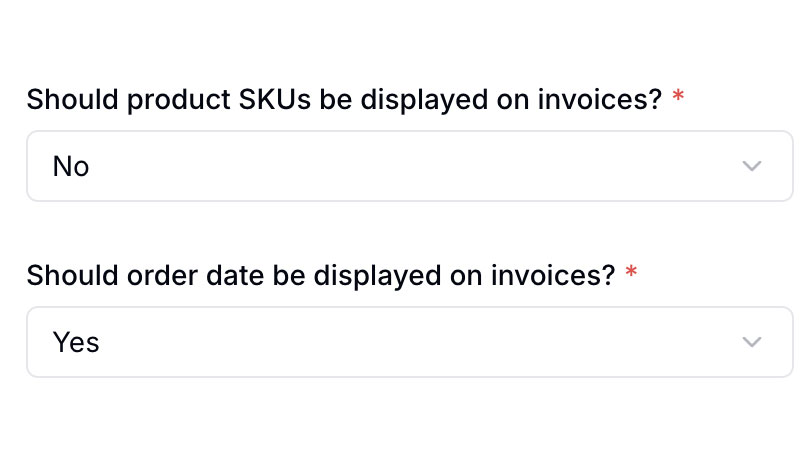
You can now add or remove your bank accounts, order dates, product SKUs, customer balances, tax totals per line, and more from your invoices. Head to the Invoice Settings page to get started.

Add Custom Items to Orders

22 Oct '25

In a rush to add an item that's not in your inventory yet? Go to the order detail page, hit the "Add items" button, type the name of the item in the search bar, and click the add button.

Order Modifiers

22 Oct '25

We already had modifiers that allowed your buyers to customize products, e.g. price-marked. Now you can add modifiers that would apply to the entire order. To start go to the Product Options page, click the "Modifiers" tab, and click the "Add Modifier" button. You can then add that modifier to an order by going to the order detail page.

Apply Specific Price Lists to Orders

22 Oct '25
Apply Specific Price Lists to Orders

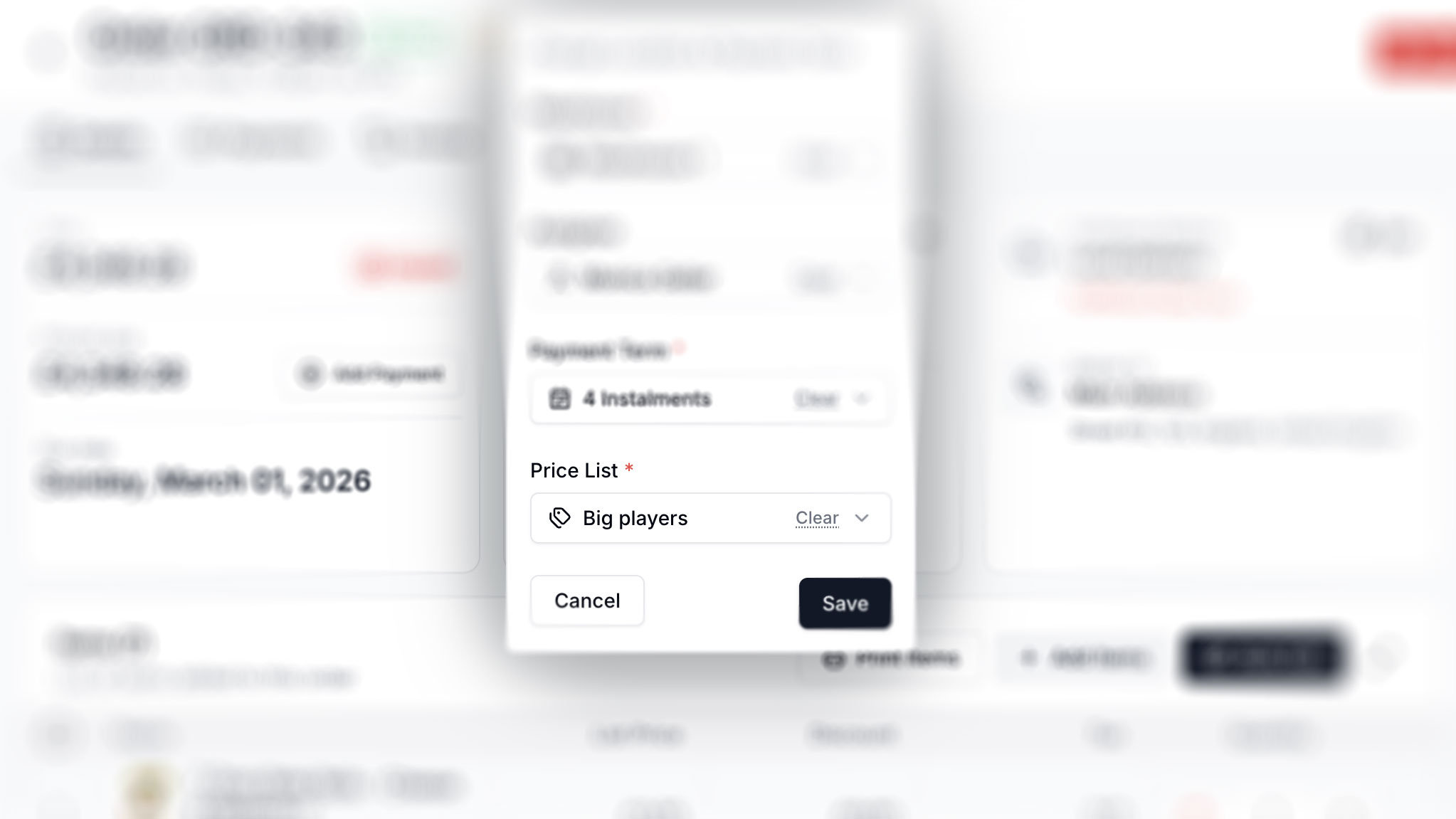
When creating an order, you can now select a price list to apply to the order. To start, go to the order detail page, click the "Edit" button on the summary card with the Warehouse icon, and select the Price List at the bottom.

Returns & Exchanges

22 Oct '25
Returns & Exchanges

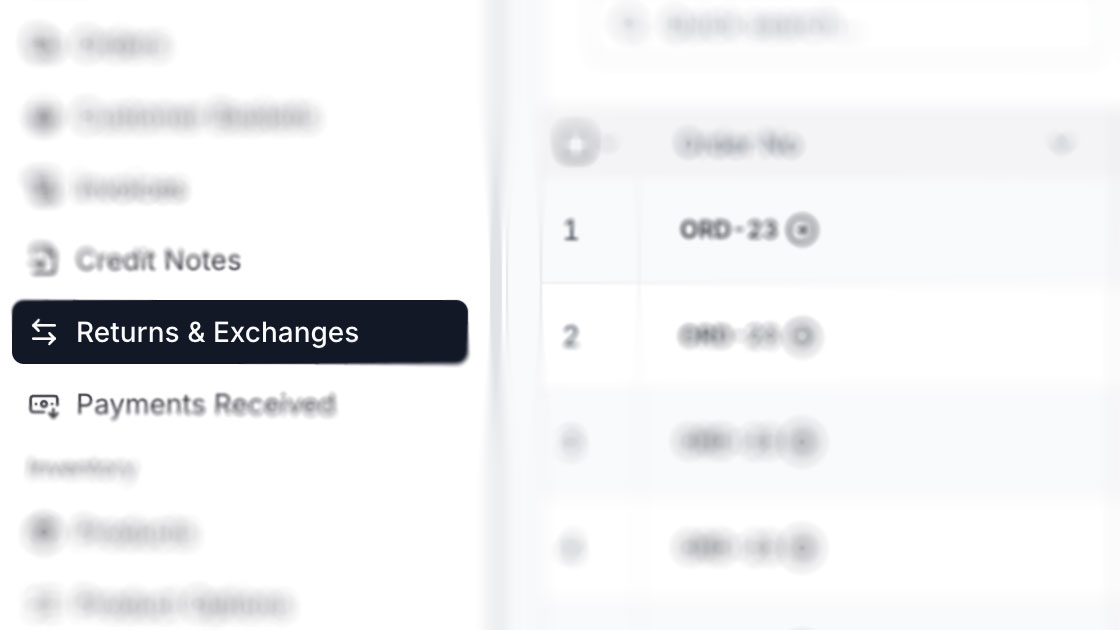
For our users who wanted to filter and sort returns and exchanges by various criteria we gathered them all in one place. As always you can export the data to CSV and Excel formats for your needs.

Default Tax Rates

22 Oct '25
Default Tax Rates

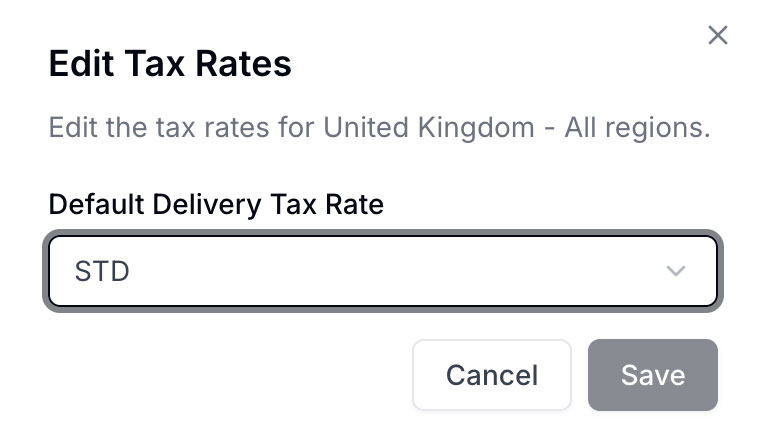
You can set the default delivery tax rate for a location to apply to all orders coming from that country or region. To start go to Tax submenu on Settings page, find the location you want to set the default tax rate for, and click the "Edit" button next to that location. Once set, when you create an order from that location, the default delivery tax rate will be selected automatically.

Transfer Stocks Accurately

22 Oct '25
Transfer Stocks Accurately

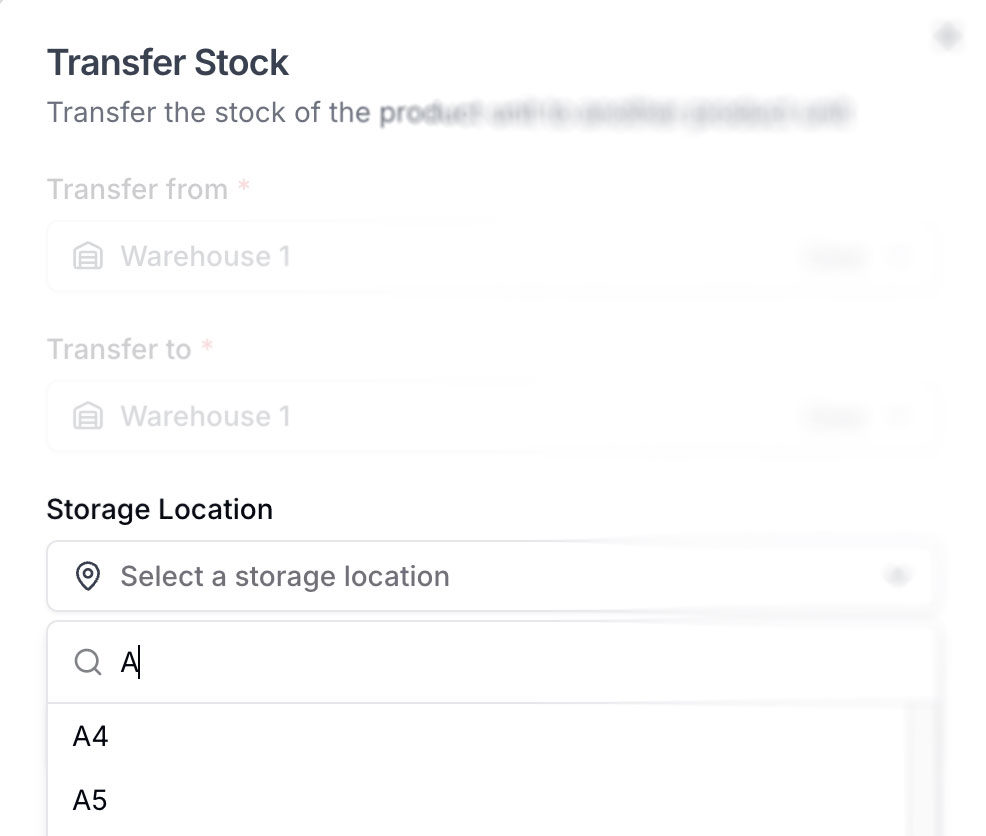
Now you can set a specific storage location when transferring stocks between warehouses. Simply go to the Product Detail page of the product you want to transfer stocks for and select the desired unit. Click the "Transfer Stock" button on the unit tab, and select the storage location inside the transfer destination.

Customise Invoices Further

22 Oct '25
Customise Invoices Further

For maximum flexibility, you can now include or exclude product SKUs and order dates from invoices.

Bulk Edit Mode Improvements

15 Oct '25

We've improved bulk edit mode for orders. You can now add custom products without units, and adding the same item multiple times automatically increases its quantity.

Customise Invoices

15 Oct '25

Tailor your invoices by adding custom fields, showing discounts as amounts or percentages, sorting items by location, and more.

Export Credit Notes

15 Oct '25
Export Credit Notes

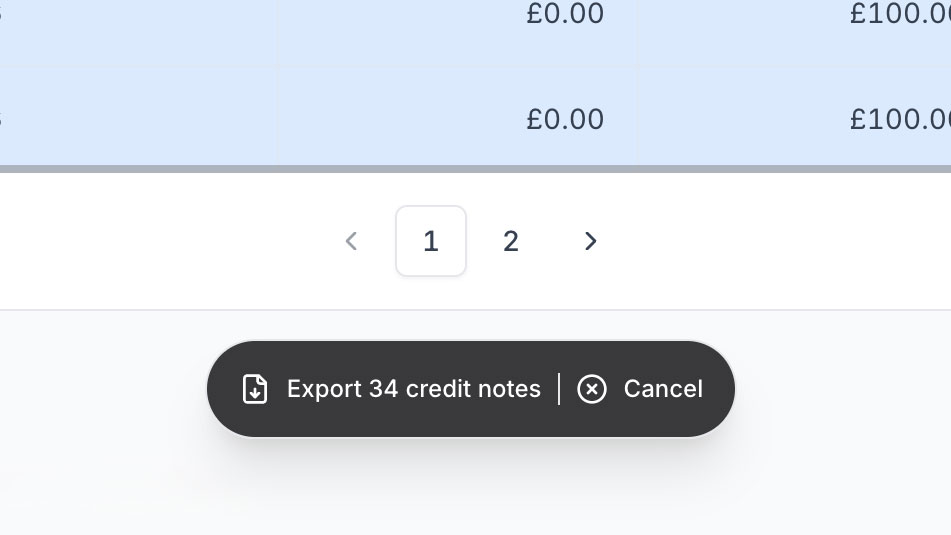
Track returns and refunds alongside your accounting and reporting processes. To start, go to the Credit Notes page, select the credit notes you want to export, and click the export button at the bottom of the page.

Export Orders

15 Oct '25
Export Orders

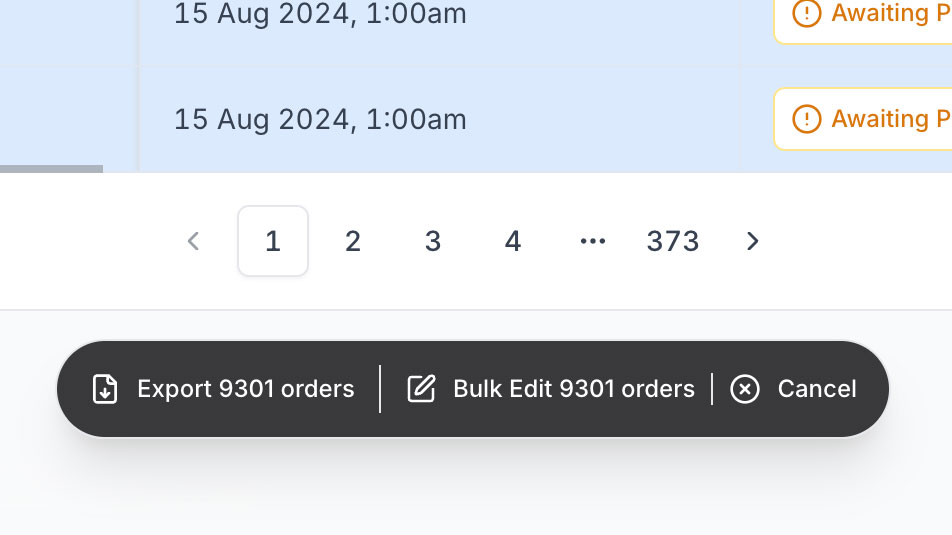
Analyse sales data, create reports, and share order information with suppliers. Head over to the orders page, select the orders you want to export, and click the export button at the bottom of the page.

Export Contacts

15 Oct '25
Export Contacts

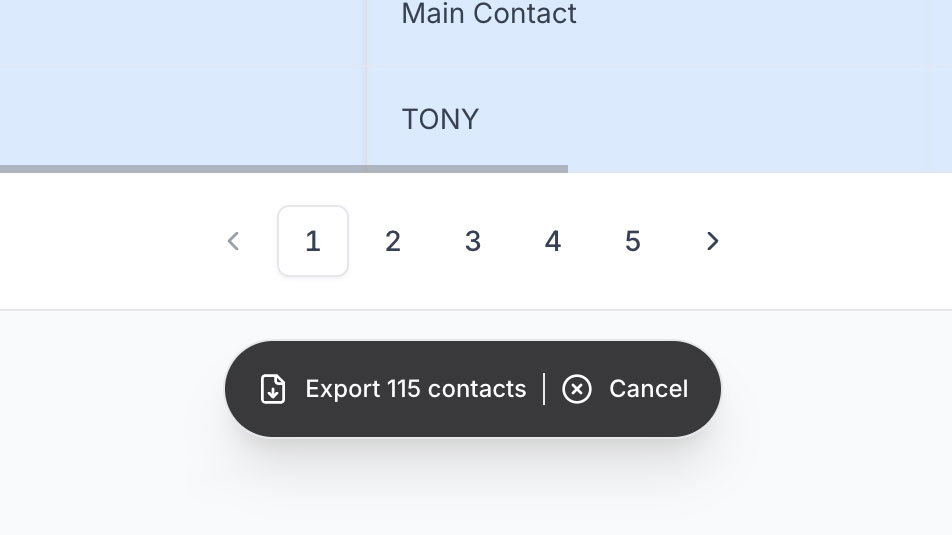
Perfect for creating mailing lists, analysing customer contacts, and sharing with your team. To start, go to the Contacts page, select the contacts you want to export, and click the export button at the bottom of the page.

Export Companies

15 Oct '25
Export Companies

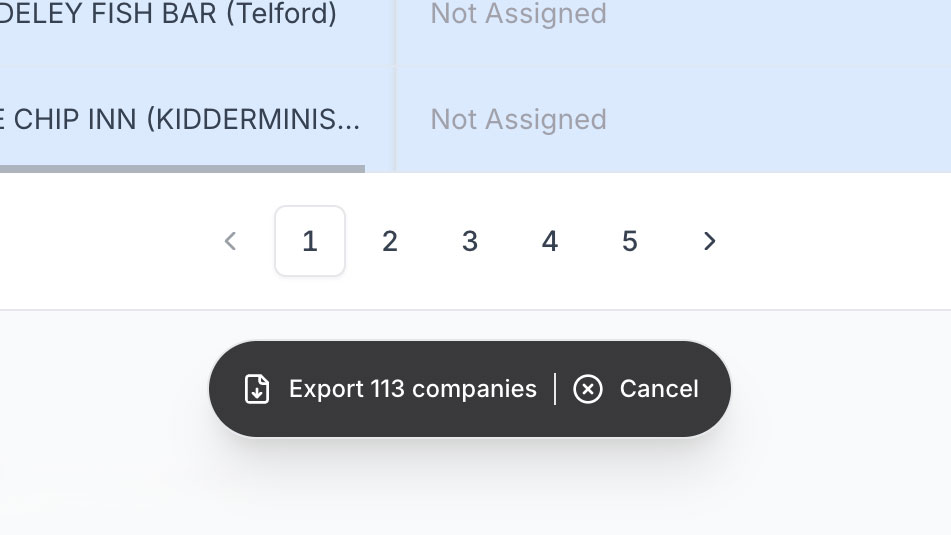
Analyse customer data, create reports, and share information with your team. Simply go to the Companies page, select the companies you want to export, and click the export button at the bottom of the page.

Manage Warehouse Storage Locations

10 Sept '25
Manage Warehouse Storage Locations

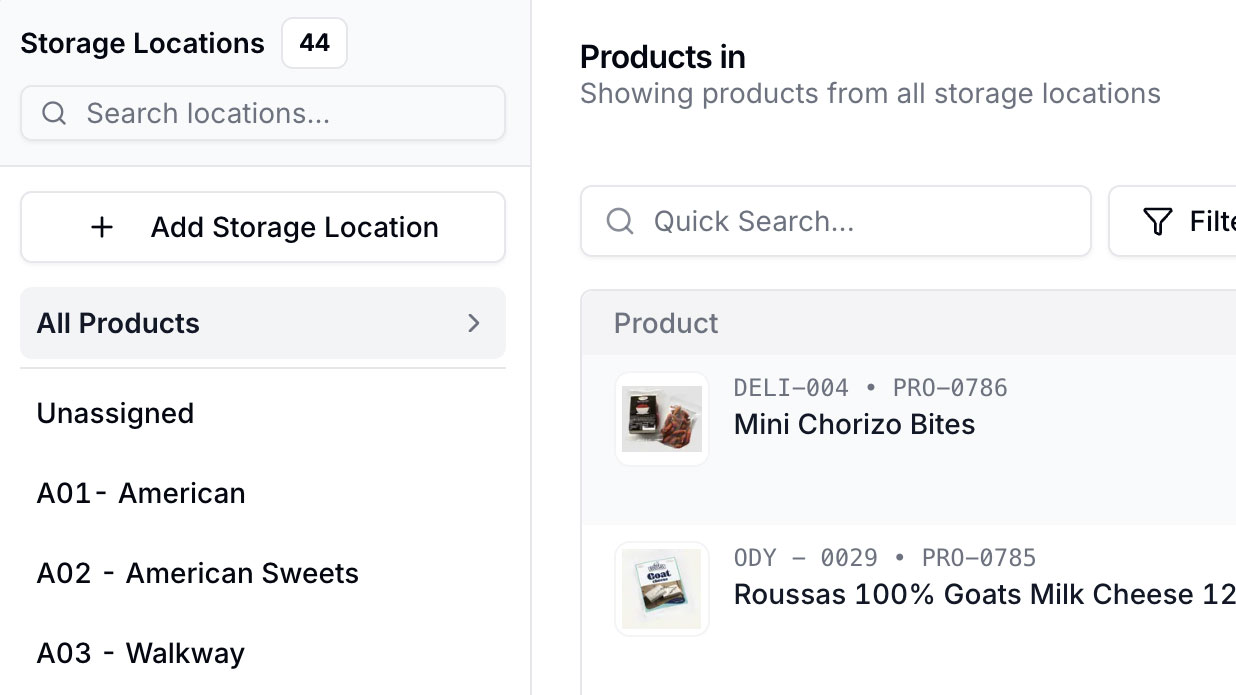
Efficiently manage your warehouse inventory by adding, editing, or deleting specific storage locations from the warehouse detail page. You can also filter by the storage location to exactly pinpoint what is stored where. Stay organised and keep precise track of your stock.

Price List Page Redesigned

20 Aug '25
Price List Page Redesigned

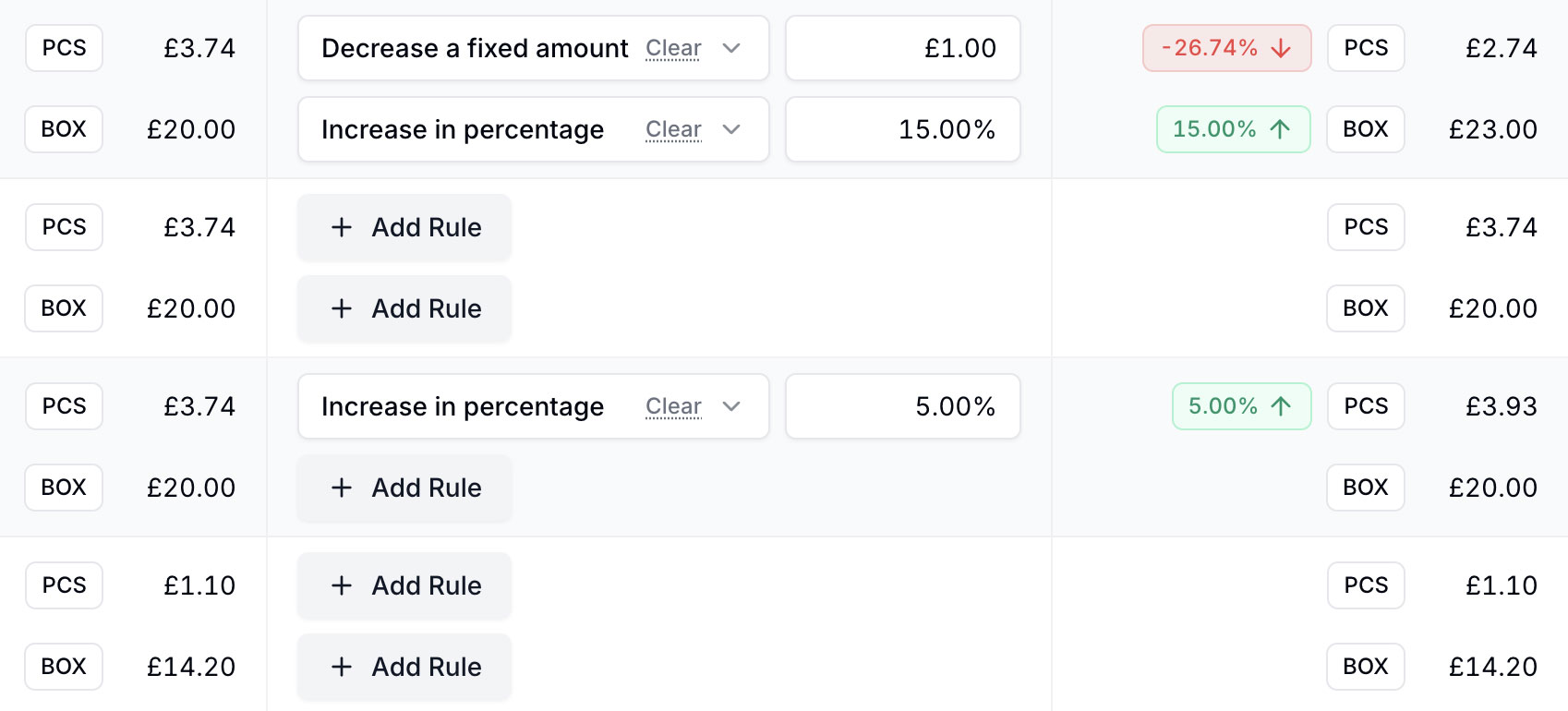
We've redesigned the price list detail page with usability in mind. Setting your pricing rules and seeing the product prices at a glance.

Custom Numbering for Your Documents

24 Jun '25
Custom Numbering for Your Documents

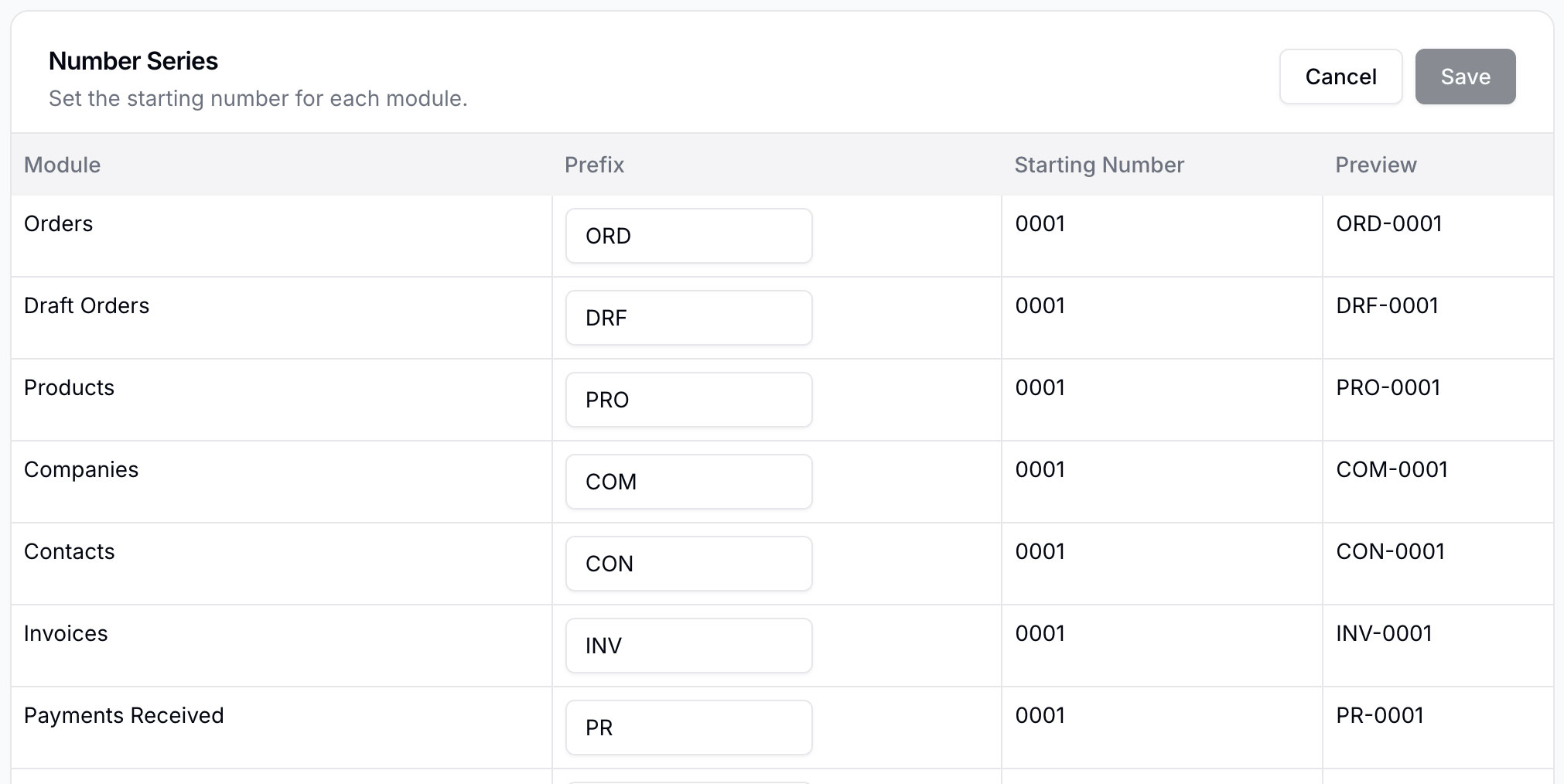
You can now set custom prefixes for orders, invoices, and more to match your business workflow. For example, change 'ORD-158' to 'SALE-158'. Find this new option in the Preferences tab on the Settings page.

Export Products

15 Jun '25
Export Products

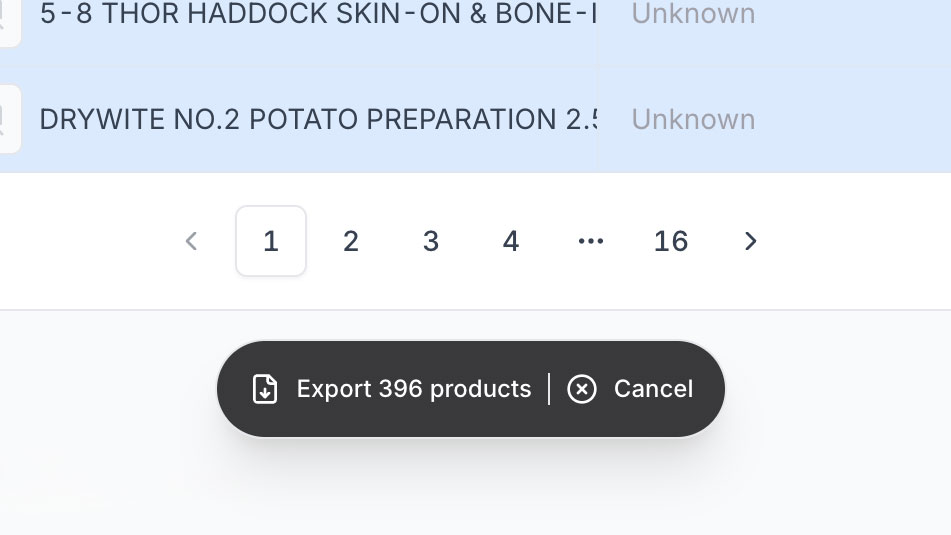
You can now export your product catalogue in CSV and Excel formats. Simply go to the products page, select the products you want to export, and click the export button at the bottom of the page.

Redesigned Product Details Page

15 Jun '25
Redesigned Product Details Page

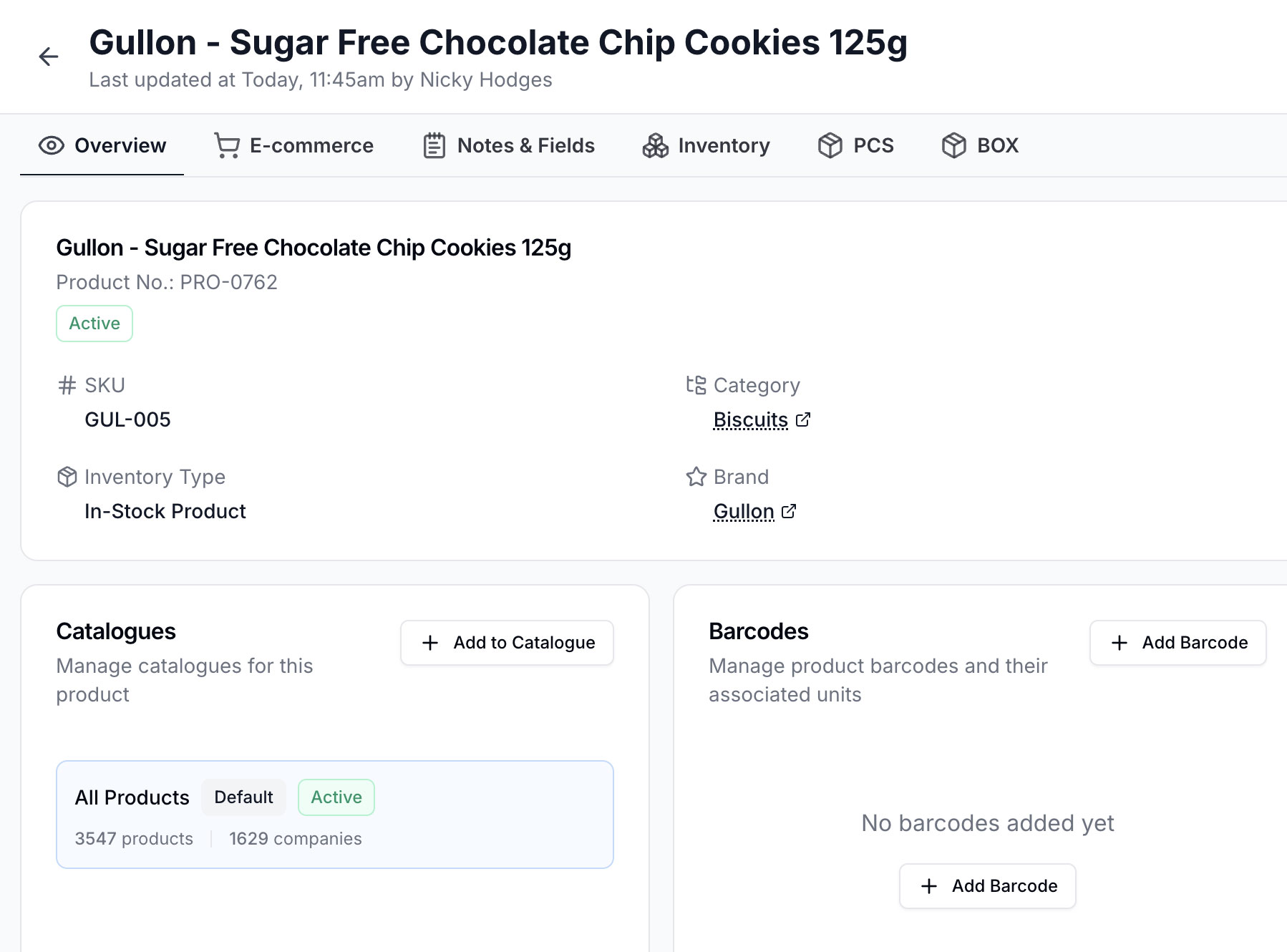
It's now easier to view and manage product information. Instantly access features, attributes, and modifiers to make changes, check inventory history at a glance, and manage Units of Measure (UoMs) more intuitively.

Improved Order Timeline for Clearer History

1 Jun '25
Improved Order Timeline for Clearer History

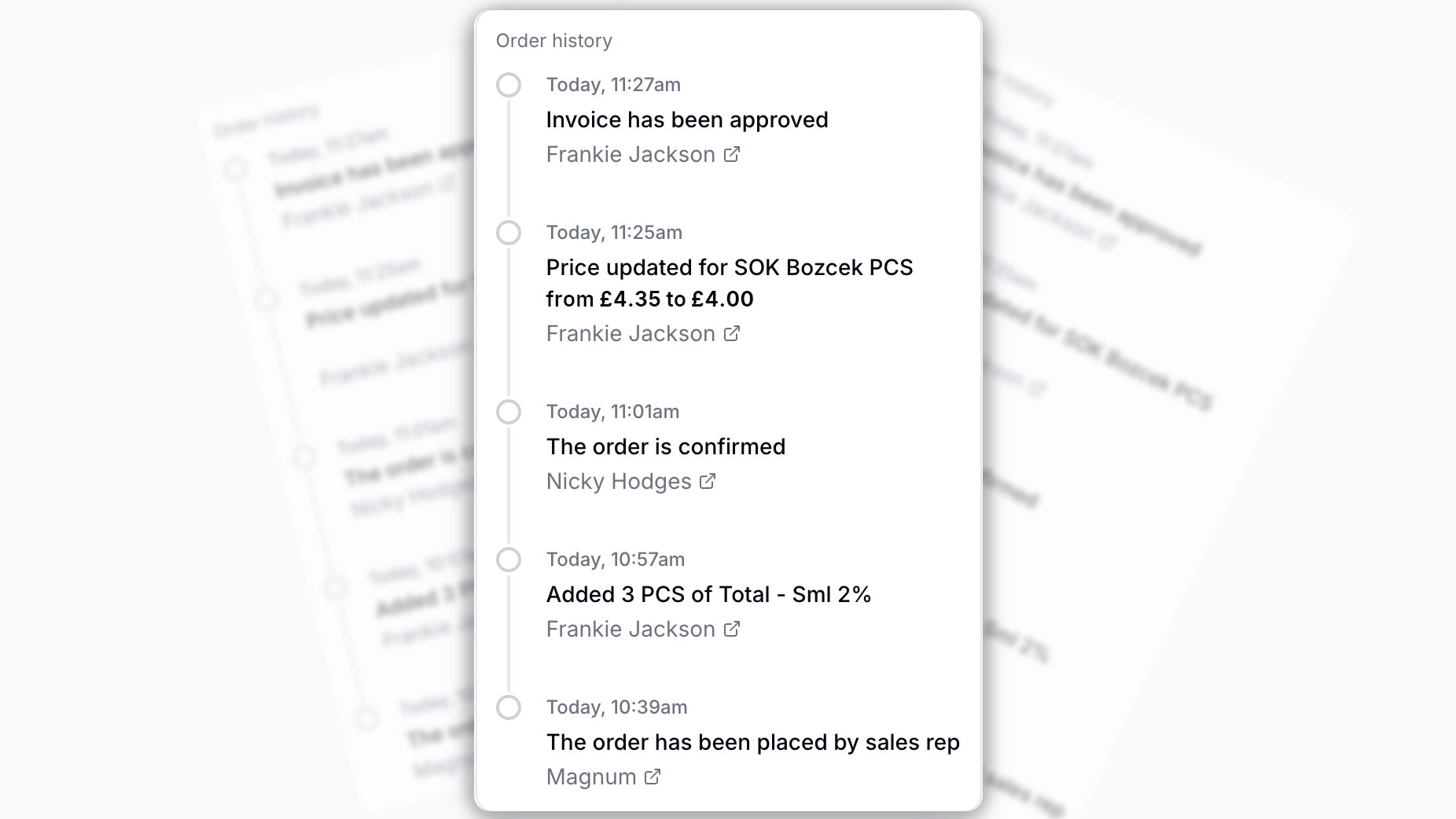
Order timeline messages are now clearer and more informative, allowing you to see who made what changes and when.

A Simpler Way to Add Contacts

20 May '25
A Simpler Way to Add Contacts

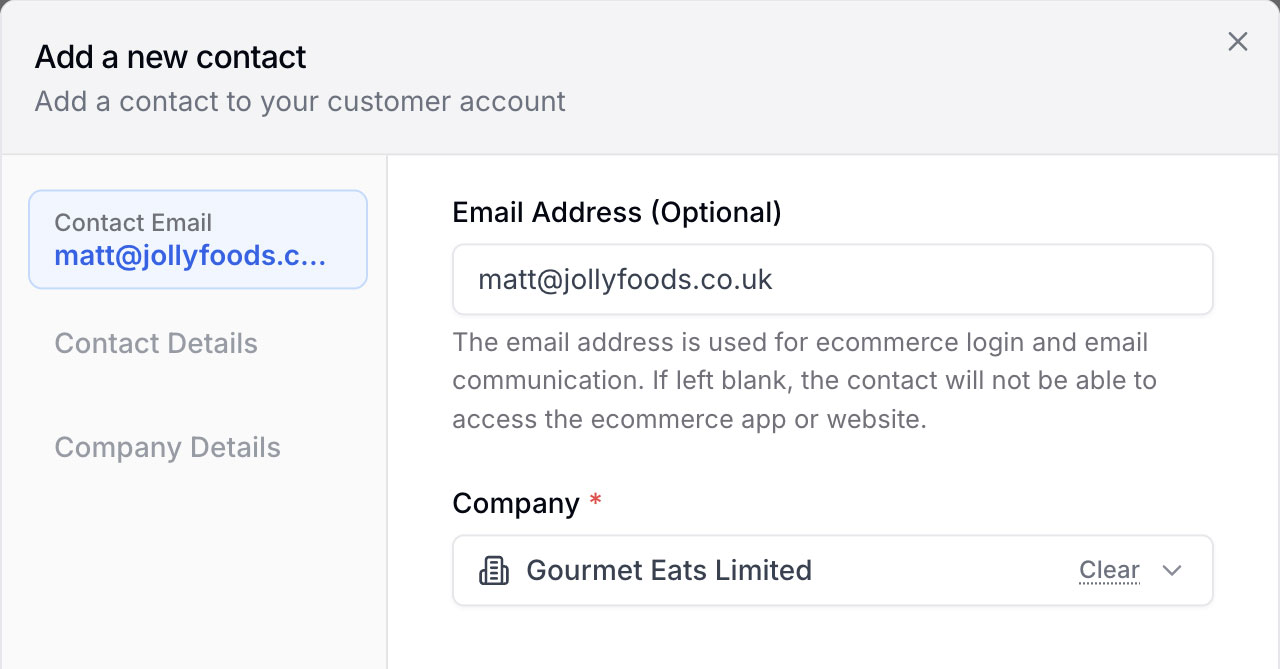
We've made creating and managing contacts more intuitive. The new step-by-step layout guides you through the process, so you can add contact details quickly without getting overwhelmed.

Run your business,
without the complexity

Start free · Try paid plans for 30 days.